Work as a team
Invite staff to scan and stamp, choose who can design cards, and see what each role can do.
Most businesses have more than one person behind the counter. Invite your staff to Qupons so anyone can stamp cards, while you decide who can design cards and see your reports.
Roles
Everyone on your team has one of three roles.
| What they can do | Team member | Admin | Owner |
|---|---|---|---|
| Scan and redeem Qupons | Yes | Yes | Yes |
| Find a customer by their full email and redeem without scanning | Yes | Yes | Yes |
| Resend a customer's Qupon | Yes | Yes | Yes |
| Browse and search the customer list, and export it | No | Yes | Yes |
| Create, pause, cancel and delete offers | No | Yes | Yes |
| Send cards to customers by email | No | Yes | Yes |
| Cancel a customer's Qupon, block emails, delete customer data | No | Yes | Yes |
| See statistics and reports | No | Yes | Yes |
| Invite and remove team members, make admins | No | Yes | Yes |
| Update business details | No | Yes | Yes |
| Choose and pay for the plan | No | No | Yes |
The person who creates a business is its owner, and is also an admin. The business is on the owner's plan, so only the owner can change it. Admins and team members see "Managed by the business owner" instead.
Invite someone
Open Team Members
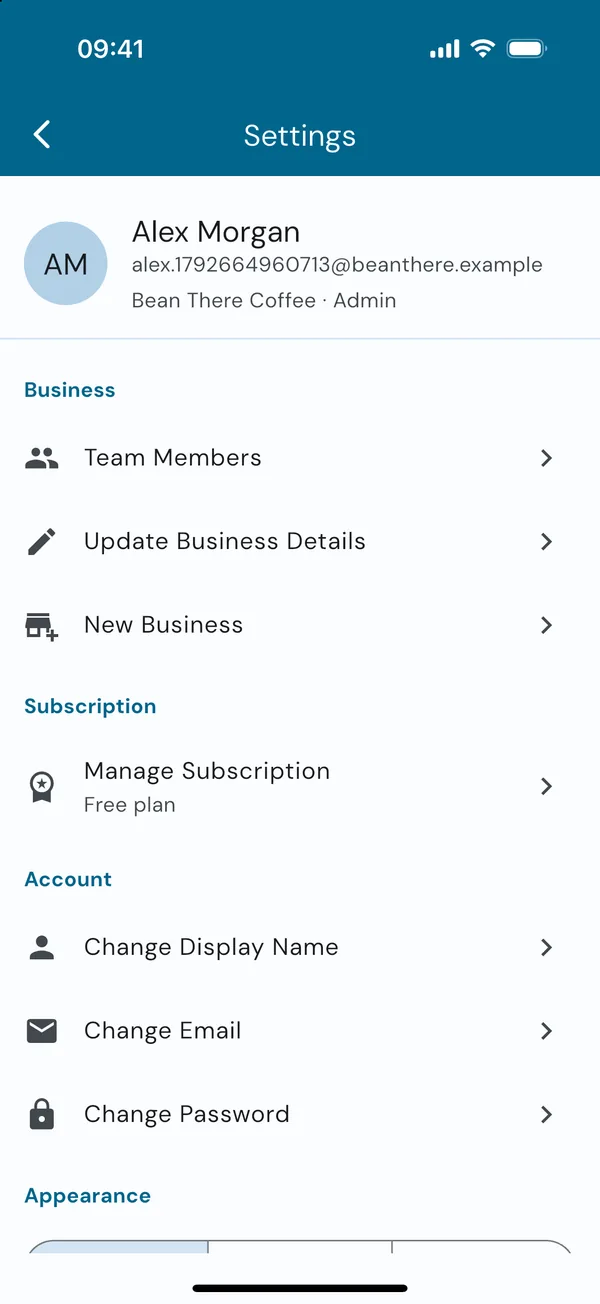
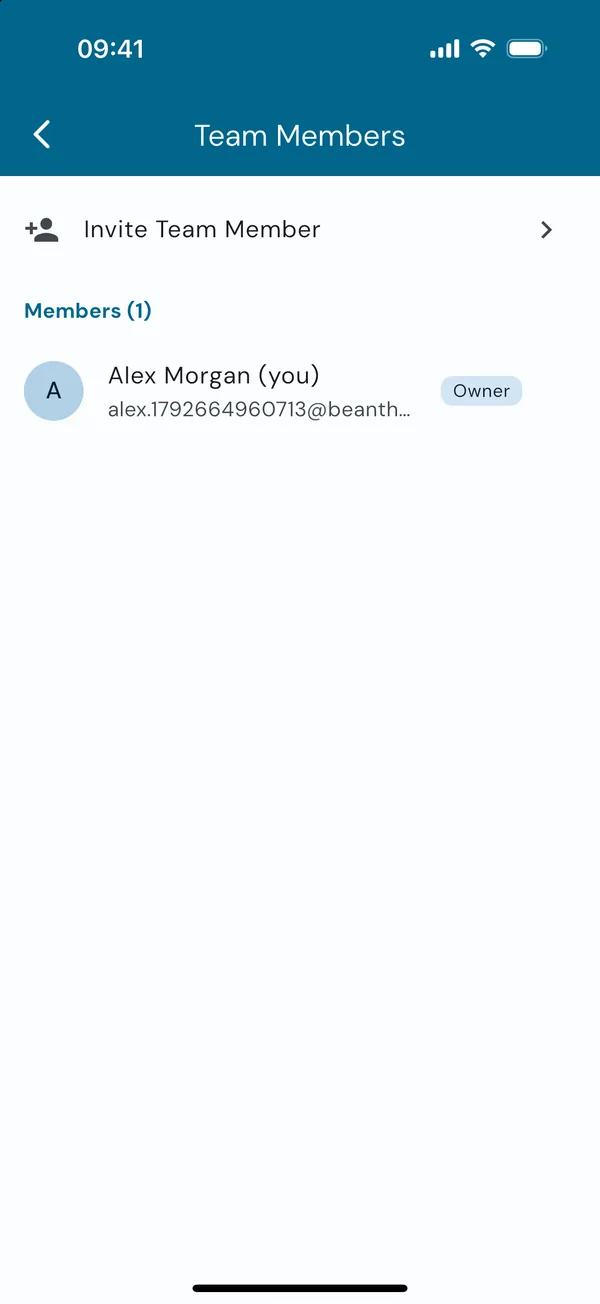
On the home screen, tap the cog at the top right to open Settings. Under Business, tap Team Members. You'll see everyone on the team and any invites still waiting to be accepted.
Send the invite
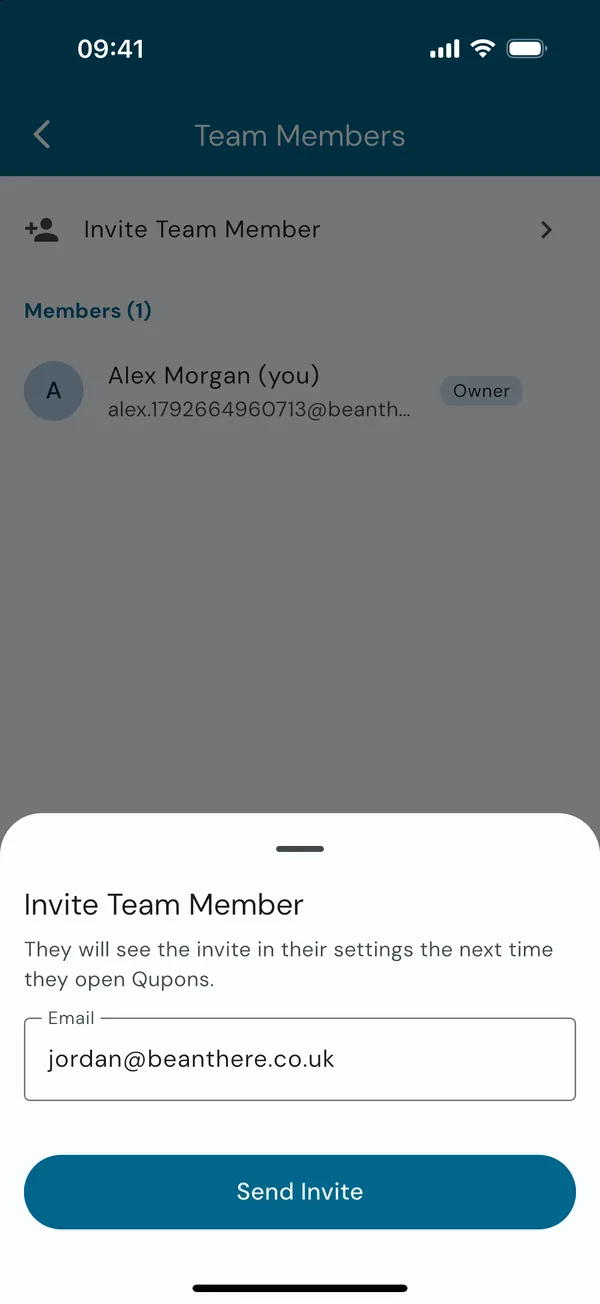
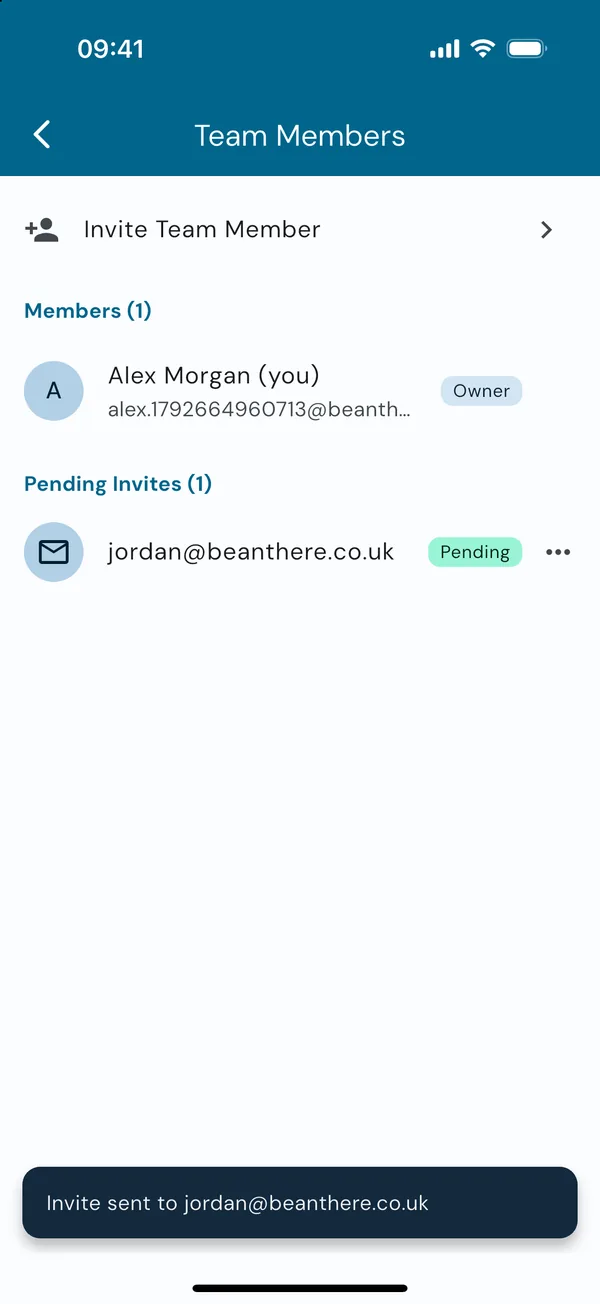
Tap Invite Team Member, enter their email address and tap Send Invite. The invite appears under Pending Invites until they accept it.
Changed your mind? Tap the menu next to a pending invite and choose Cancel Invite.
They accept it in the app
Your colleague downloads Qupons and signs up with the email address you invited, then confirms it from the link Qupons emails them. Instead of being asked to set up a business, they're shown your invite and tap Join.
The invite only works for that email address, once it's confirmed, so nobody else can use it.
Already using Qupons? They'll find the invite in Settings → Received Invites the next time they open the app.
What team members see
Team members get a simpler app, built for serving customers. Under Serve a customer, their home screen has two big buttons: Scan a card or coupon, and Find a customer for when someone doesn't have their card. Along the bottom are just Home, Scanner and Customers. They don't see reports, offers or your plan.
To protect your customers' privacy, team members can't browse the customer list. They type a customer's full email address and tap search to find them.
Change someone's role or remove them
In Team Members, tap the menu next to a person:
- Make Admin gives them full access to cards, customers and reports.
- Remove Admin returns an admin to a team member.
- Remove from Team takes away their access to your business straight away. Their account stays, but they can no longer see or redeem your Qupons.
Tip: every redemption records who made it, so you can see which member of the team stamped each card in the card's redemption history.
Plan limits
Plans are measured in active cards, not people, so you can invite your whole team on any plan. See Your plan and active cards.