Get cards to your customers
Print your sign-up QR code, share your sign-up link, or email a card to a customer yourself.
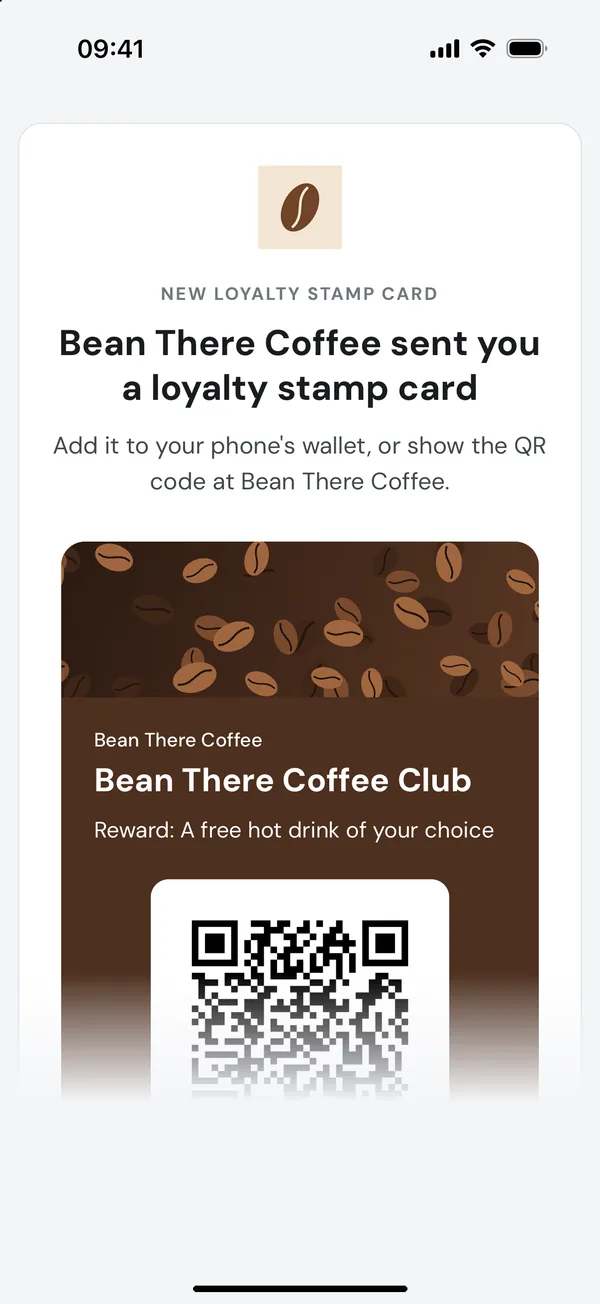
There are two ways a customer gets one of your loyalty cards: they sign up themselves with your sign-up link, or you send it to their email address from the app. Either way they receive the same thing: an email from your business with their own QR code and Apple and Google Wallet passes.
Option 1: share your sign-up link and QR code
If you left Online sign-up switched on when you created the card, it has its own public web page, with a link and a QR code. Anyone can sign up with their email address. This is the easiest way to reach lots of customers, because they do the typing.
Get your link and QR code
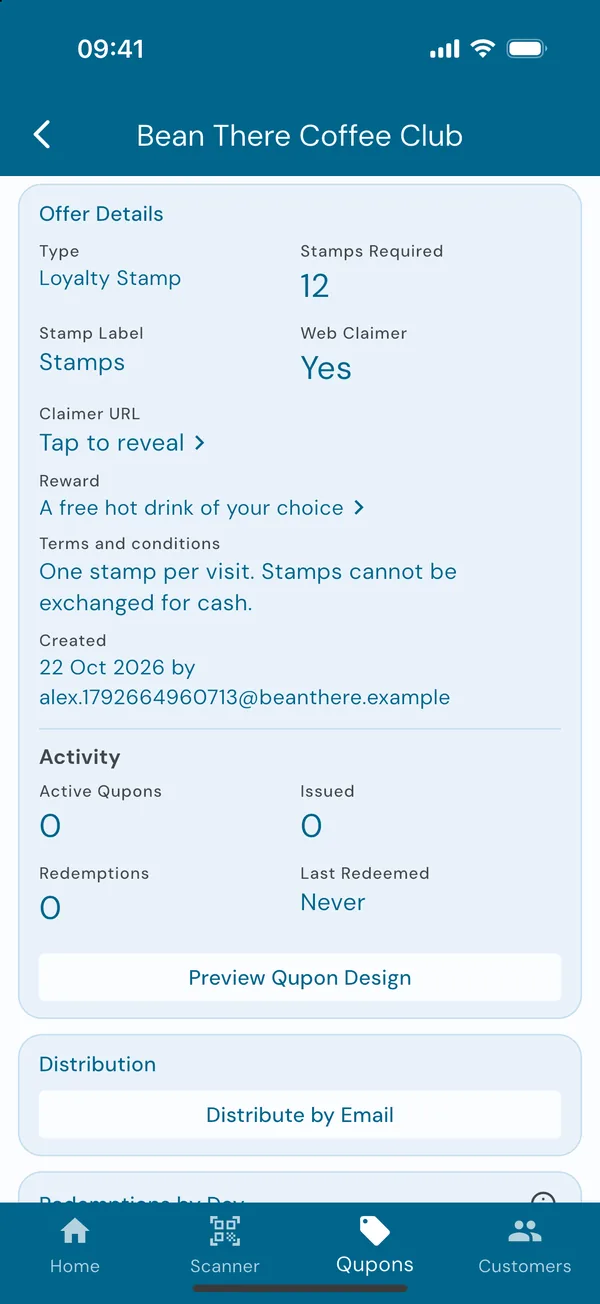
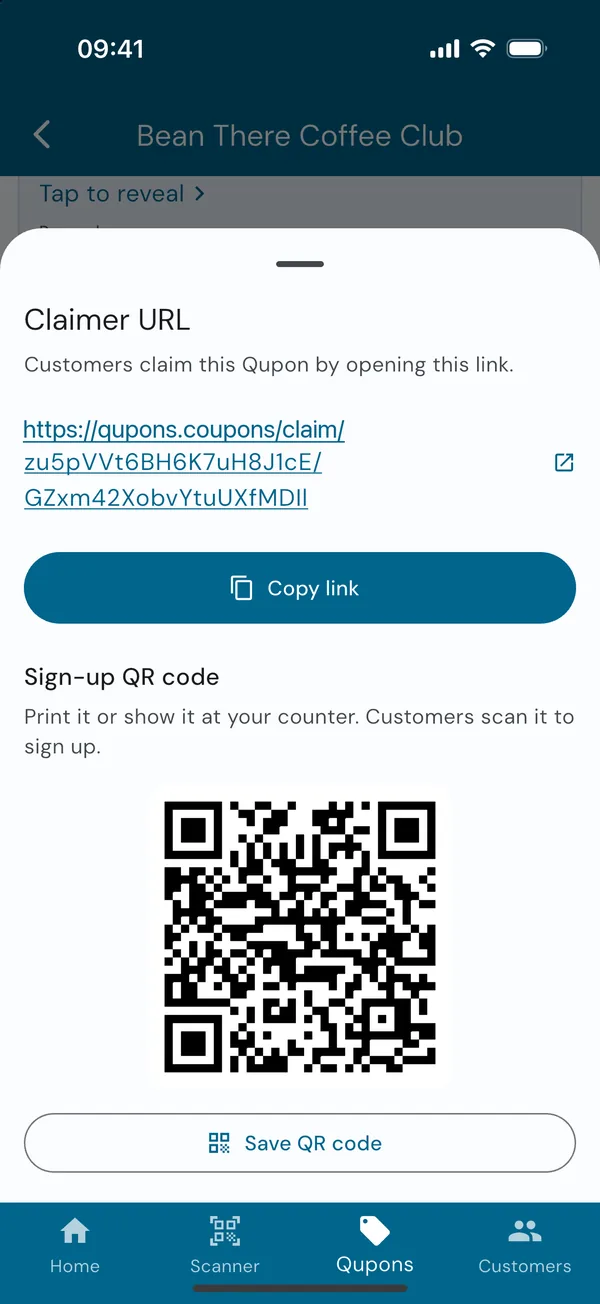
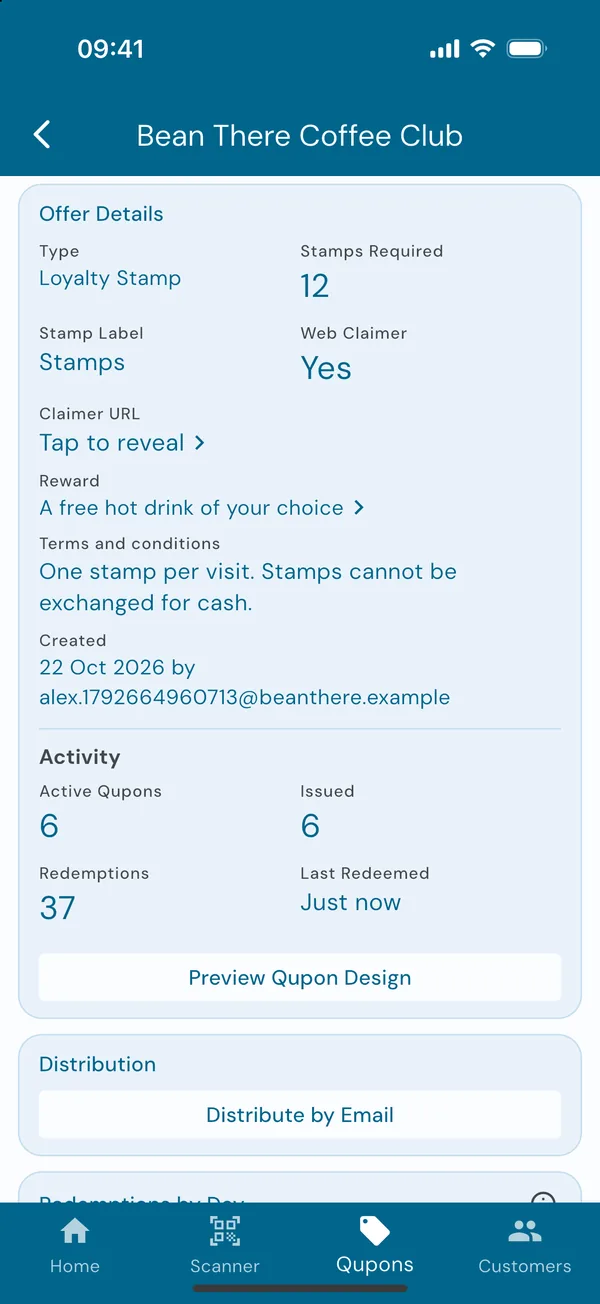
You're shown them as soon as you create the card. To find them later, open the Qupons tab, choose the card, and under Offer Details tap Tap to reveal next to Claimer URL.
- Copy link copies the address, ready to paste anywhere.
- Save QR code opens your phone's share sheet with the QR code as an image, sharp enough to print. Save it to your photos or files, print it, or send it to whoever does your printing.
Put it where customers will see it
A few ideas that work well:
- A QR code by the till. Print the QR code you saved from the app. Customers scan it with their phone camera while they wait.
- Table cards, window stickers or receipts, with the same QR code.
- Your website, social media bio or newsletter.
- Your booking confirmation emails, if you take appointments.
What your customer sees
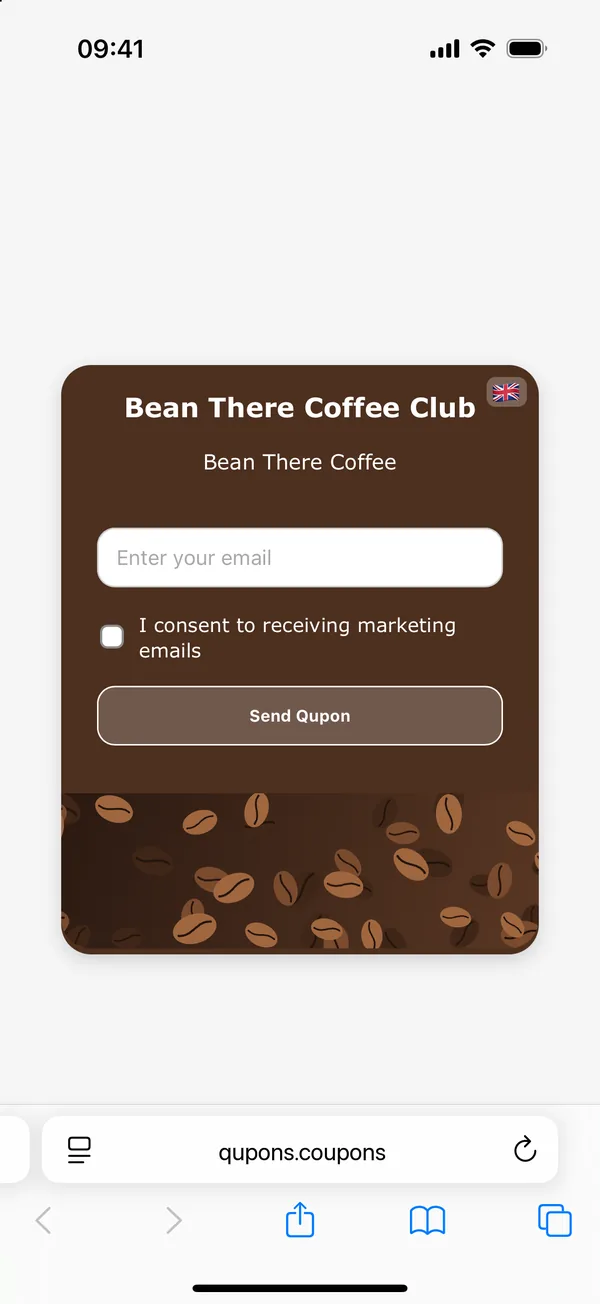
The link opens a page in your card's colours and banner, showing the card's name and your business name. The customer enters their email address, chooses whether to receive marketing from you, and taps Send Qupon. Their card arrives by email a few moments later.
There's nothing to install and no account to create.
One card each. If someone signs up again with the same email address, they're re-sent the card they already have, so their stamps stay in one place. To stop the link being misused, each email address can only be sent a card a few times an hour, and you can block an address from signing up at all.
Option 2: send a card by email
Perfect for the till: a customer says "do you have a loyalty card?" and you can set them up while they pay.
Open the card
In the Qupons tab, choose your loyalty card to open its details. Under Distribution, tap Distribute by Email.
Owners and admins can send cards. Team members can't, but they can stamp them.
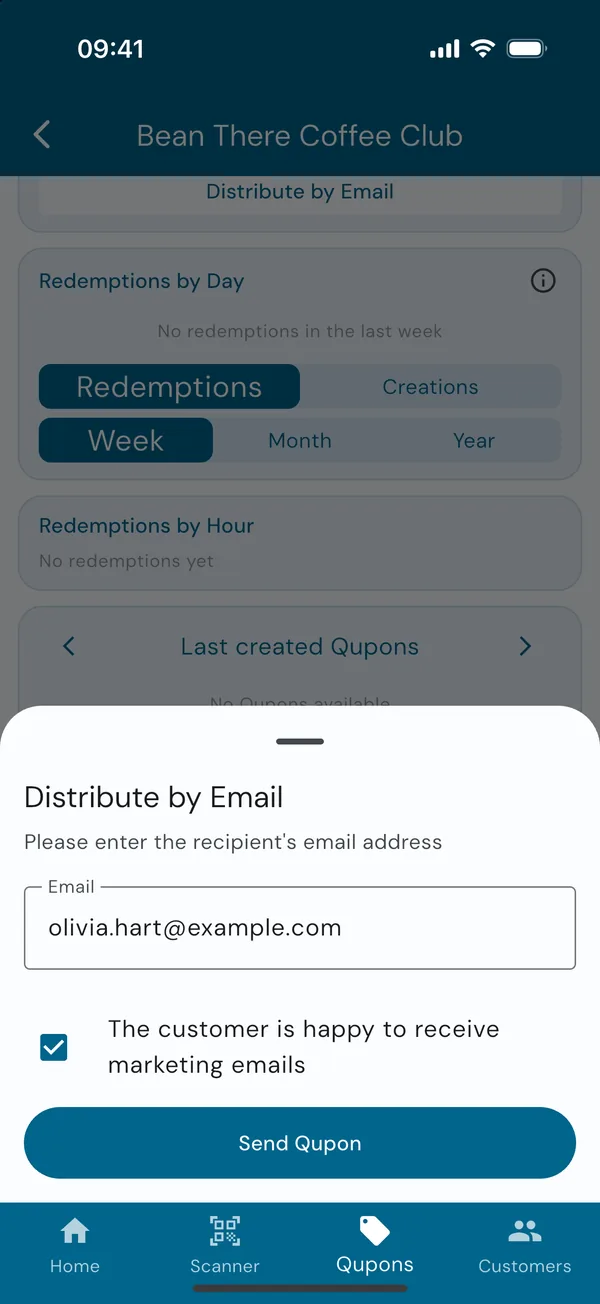
Enter their email address
Type the customer's email address. If they're happy to hear from you about offers, tick The customer is happy to receive marketing emails. Only tick it if they've said yes.
Tap Send Qupon.
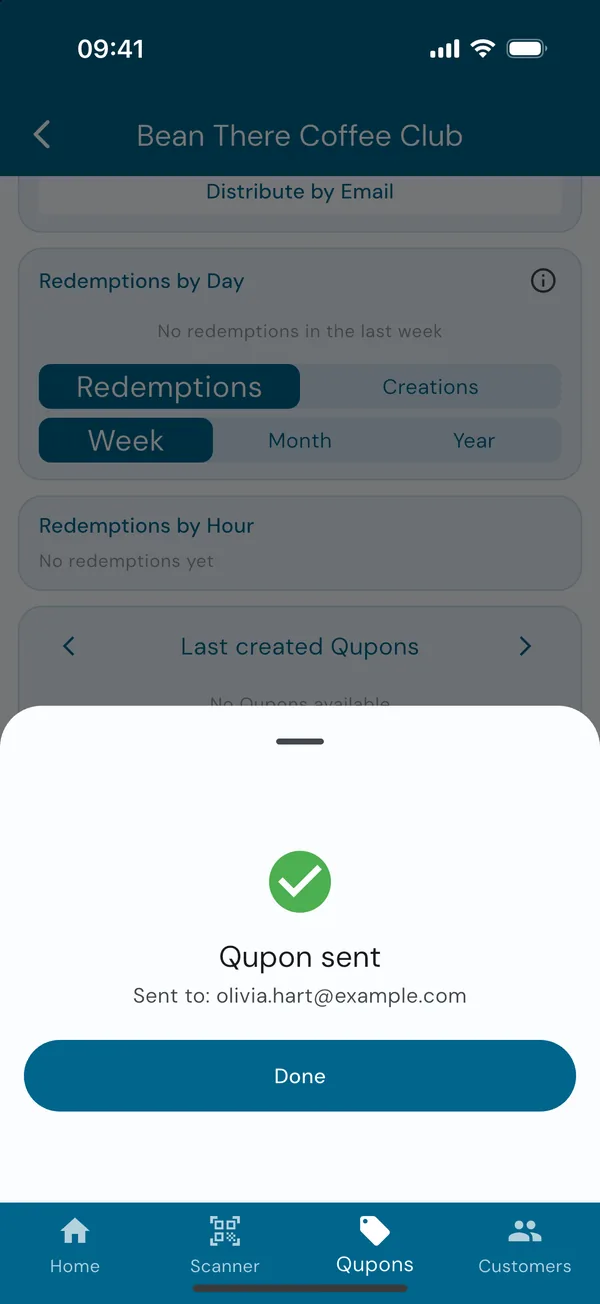
Done
Qupons confirms the Qupon was sent. Tap Done. The customer appears in your Customers tab straight away, and the card can be scanned as soon as they've opened the email.
If the address is blocked, Qupons warns you first: choose Send anyway or Don't send. If the offer's new Qupons are paused, it can't be sent until you resume them.
What the customer receives
An email from your business name, titled "Your loyalty stamp card from Bean There Coffee" (with your business name, of course). It contains:
- their card in your design, with the offer
- their personal QR code
- Add to Apple Wallet and Add to Google Wallet buttons
- how the card works, and your small print
Point customers to our guide for customers if they have questions.
Customer didn't get it?
- Ask them to check their spam or promotions folder.
- Resend it: find the customer in the Customers tab, open their Qupon and tap Resend Qupon. Its Wallet line also shows whether they've added it to a wallet yet. See Resend or cancel a Qupon.
- Typo in the address? Send the card to the right address, and cancel the one sent to the wrong address.