Create your first loyalty card
Walk through the loyalty card designer step by step, from naming your card to choosing a design.
A loyalty card is a digital stamp card your customers keep in Apple Wallet or Google Wallet. The card designer walks you through it one question at a time and takes about five minutes. Open it from the Qupons tab by tapping + at the top right, or tap Create a loyalty card on your home screen when you don't have any cards yet.
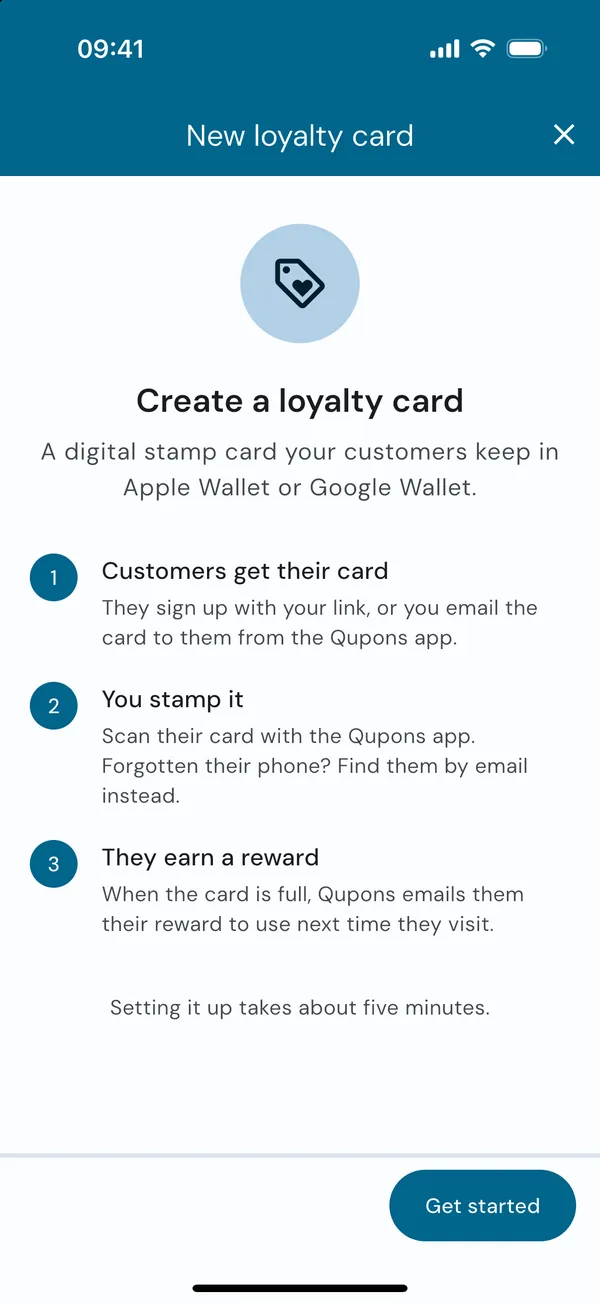
- Get startedSee what you're about to create
- Name your card"Bean There Coffee Club"
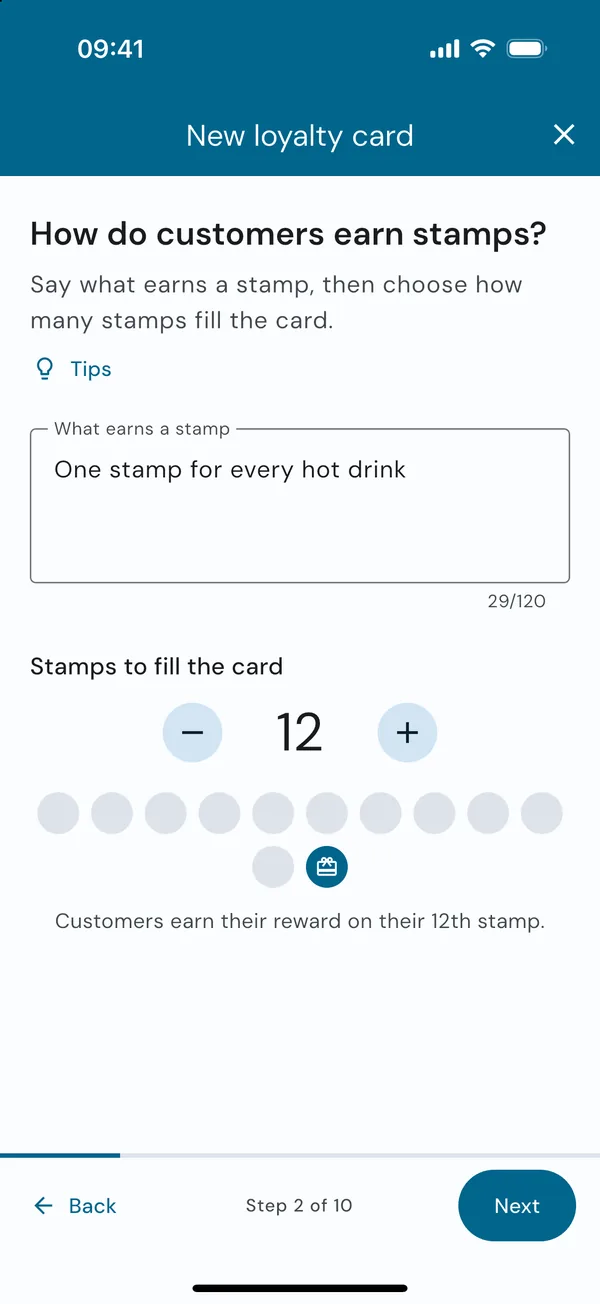
- Set up stampsOne stamp per hot drink, 12 to fill the card
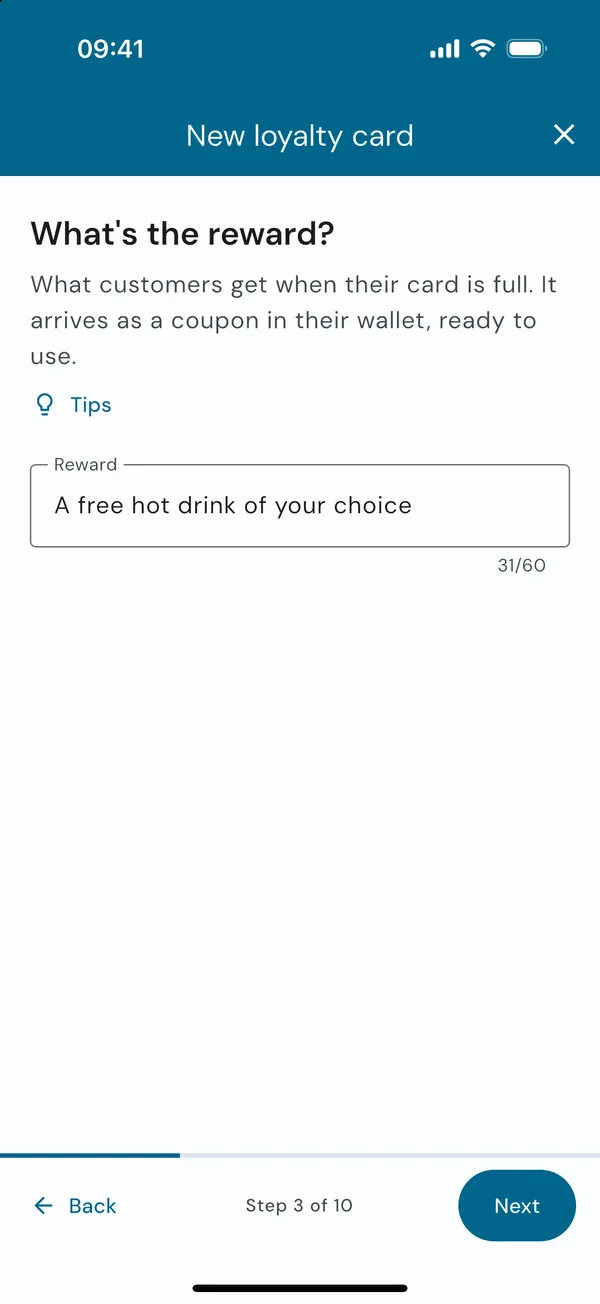
- Choose a reward"A free hot drink of your choice", always valid
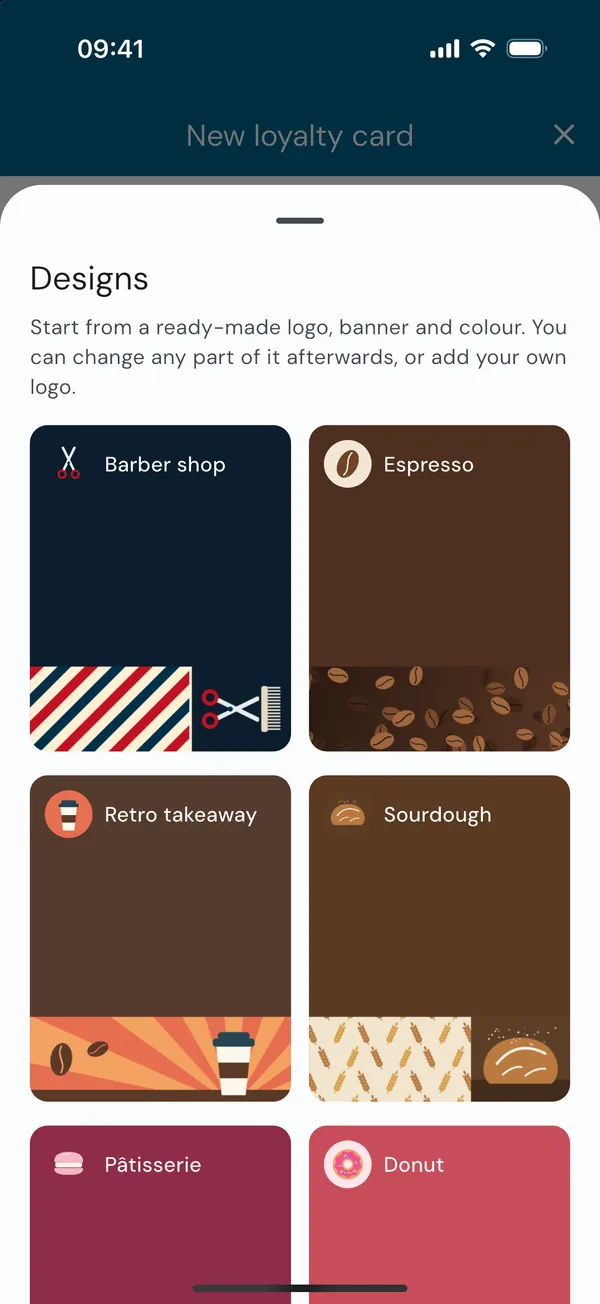
- Pick a designStart from the Espresso design
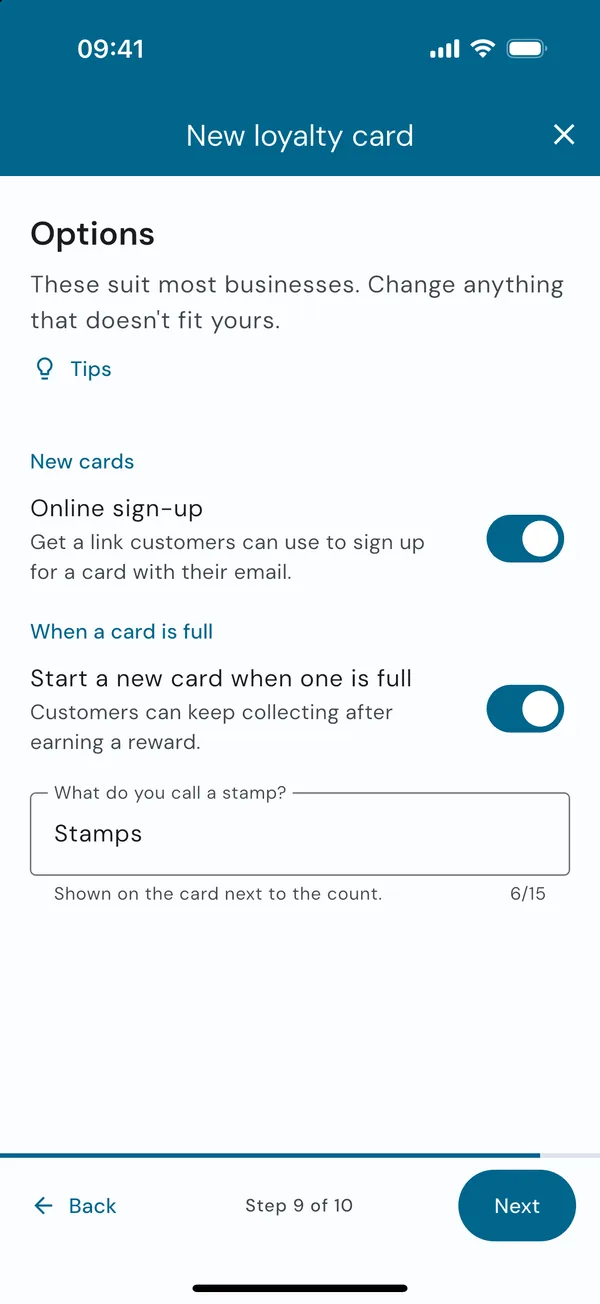
- OptionsOnline sign-up, and a new card when one is full
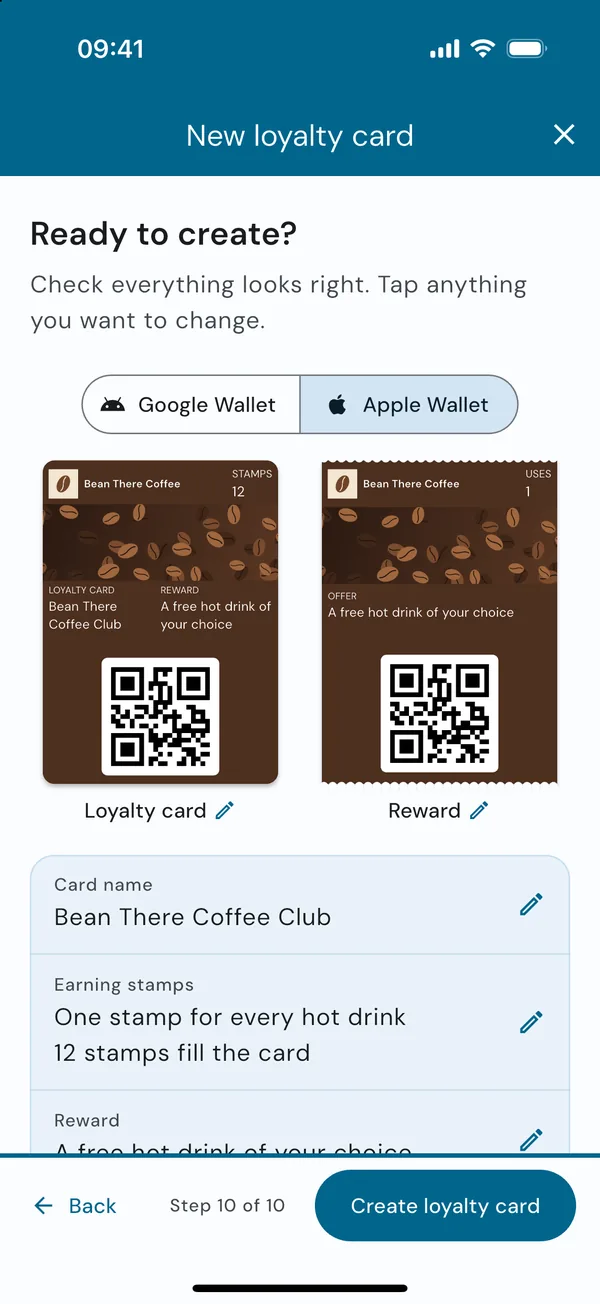
- Review and createReady to share in seconds
The steps are described in full below. You can go back to any step with Back, and every tip in the app is behind the Tips link on its page. Closing the designer before you've created the card asks first, so you don't lose your work by accident.
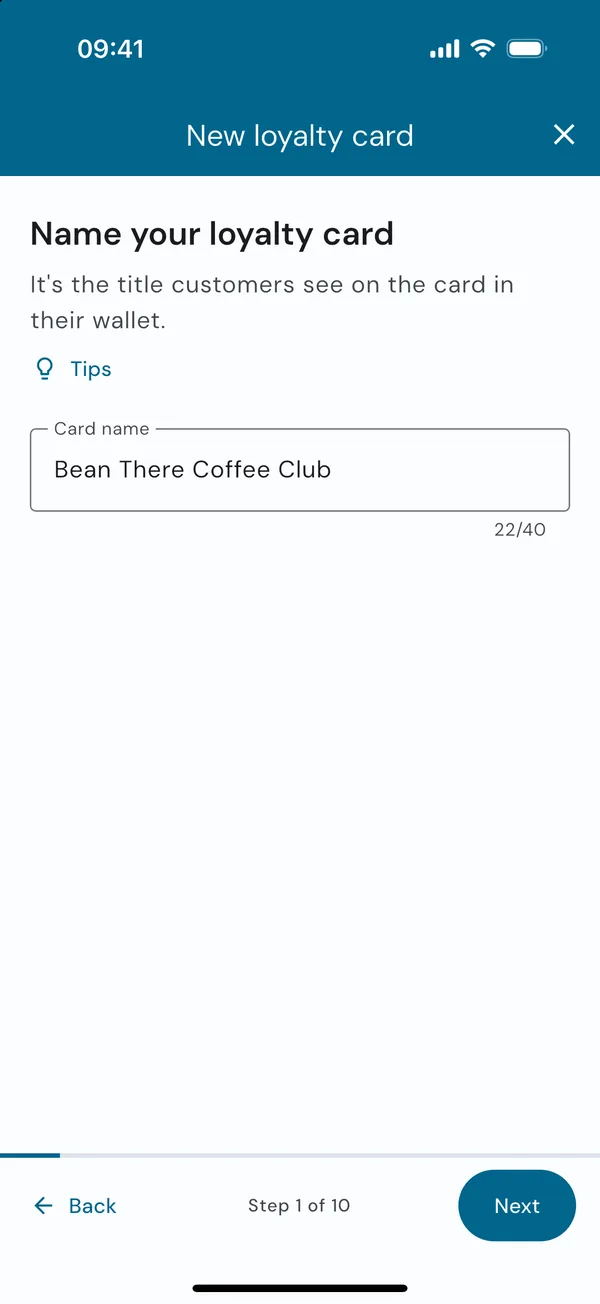
1. Name your card
Give it a short, clear name
This is the title customers see on the card in their wallet. A good name tells them whose card it is at a glance, so include your business name: "Bean There Coffee Club".
- Keep it under 25 characters so it fits on a phone screen.
- Leave the offer out of the name: you describe it on the next pages.
2. Decide how stamps are earned
What earns a stamp, and how many fill the card
Say what a customer does to earn a stamp, like "One stamp for every hot drink". Then use − and + to choose how many stamps fill the card, up to 30. The dots underneath show the card as customers will see it, with the reward on the last stamp.
8 to 10 stamps suits most cafés and shops: fewer stamps get more customers to a reward. Tie a stamp to one simple action and save rules like minimum spends for the small print.
3. Choose the reward
What customers get for a full card
The reward is why customers keep coming back, so make it worth the effort. Be specific: "Free medium coffee" is clearer than "A treat".
The reward becomes the title of the reward coupon customers receive, so write it the way you'd say it at the till.
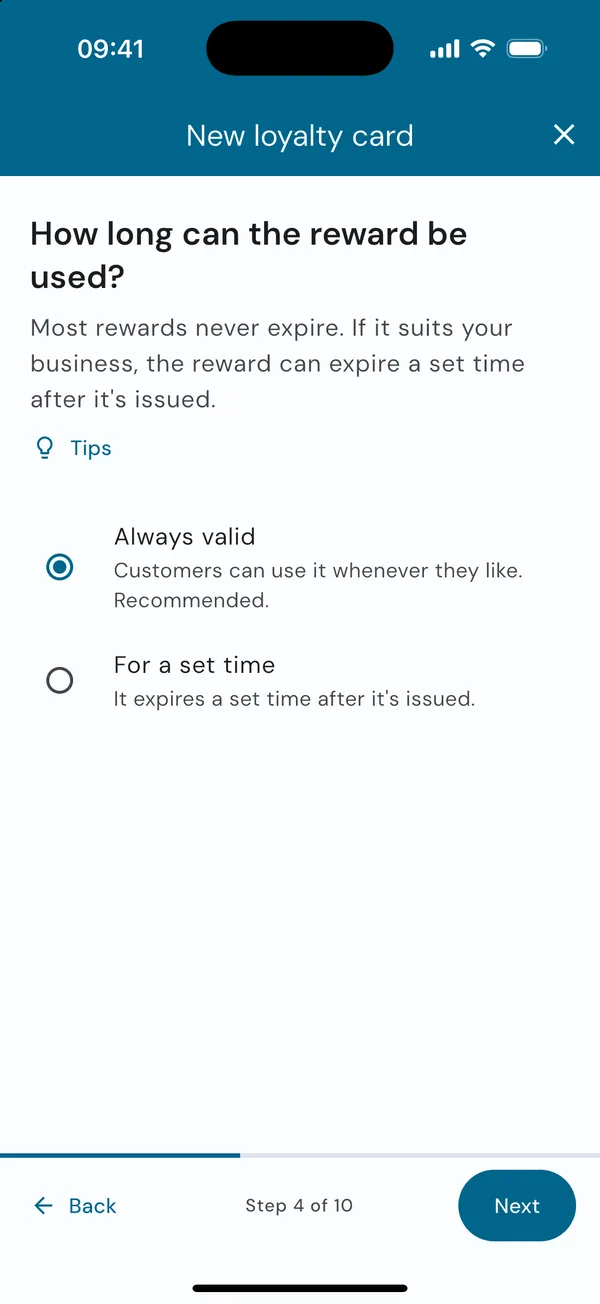
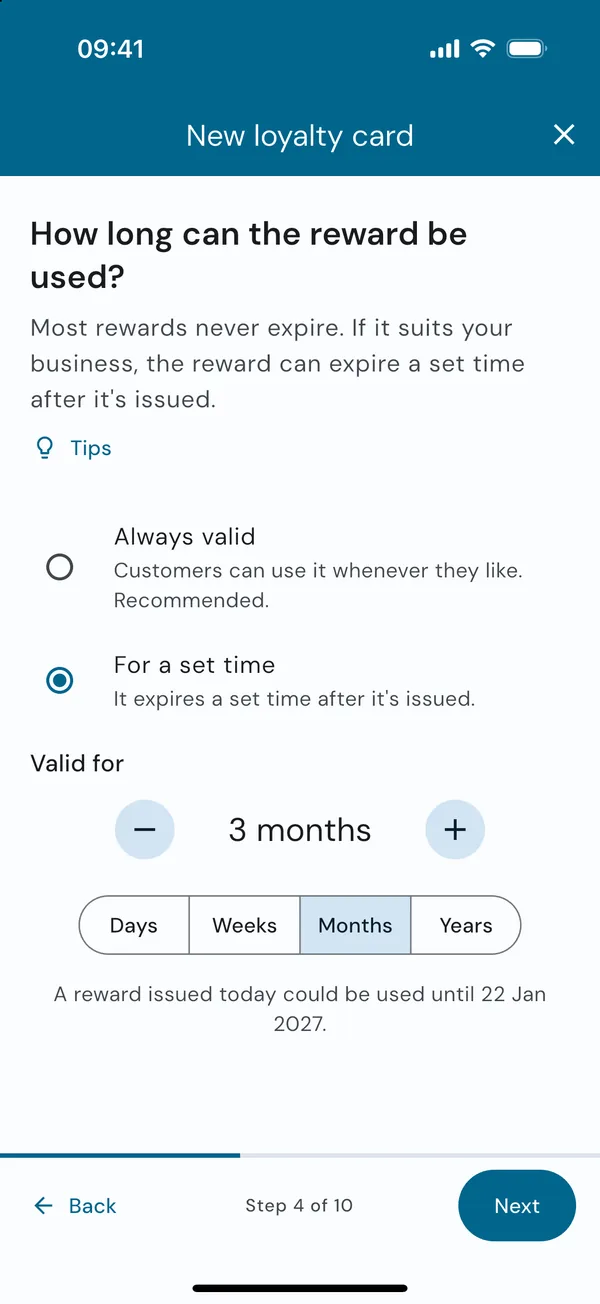
How long the reward can be used
Most rewards never expire, and Always valid is the recommended choice: customers don't feel rushed, and your staff have nothing to check.
If it suits your business, choose For a set time and set how long, in days, weeks, months or years. The page shows when a reward issued today would run out. Customers are emailed a reminder before it expires.
4. Check your business details
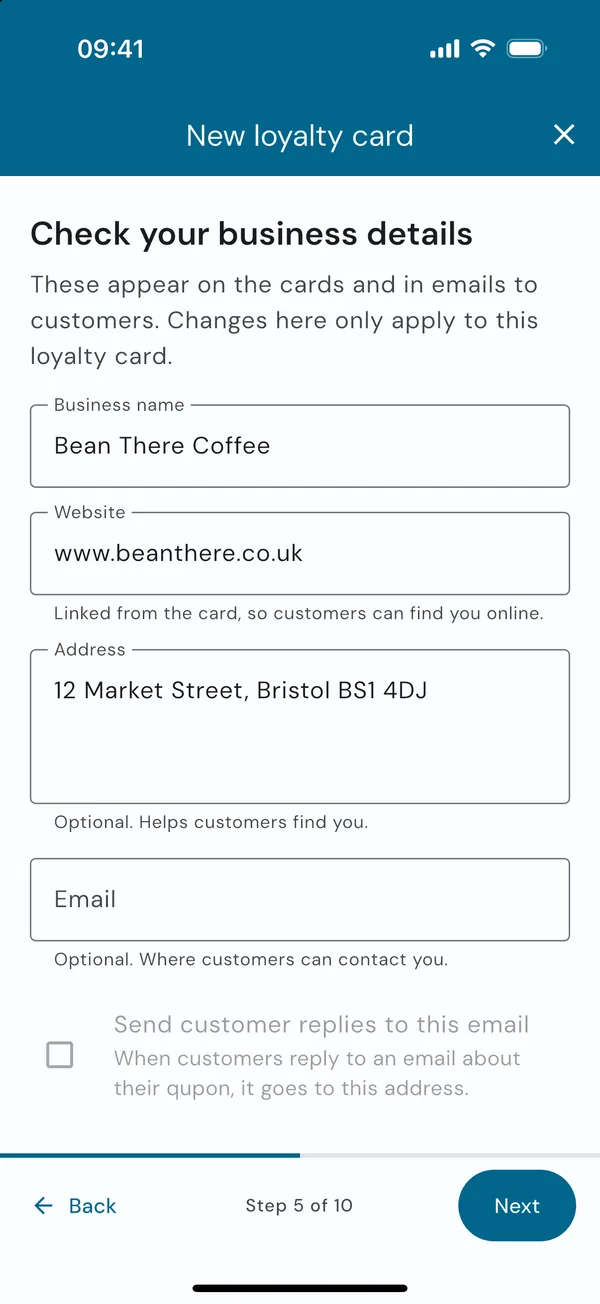
Name, website, address and email
These are filled in from your business and appear on the card and in emails to customers. Change them here if this card needs something different, such as a branch address. Changes on this page only apply to this card.
Add an email where customers can contact you, and tick Send customer replies to this email to receive their replies to emails about the card.
5. Add any small print
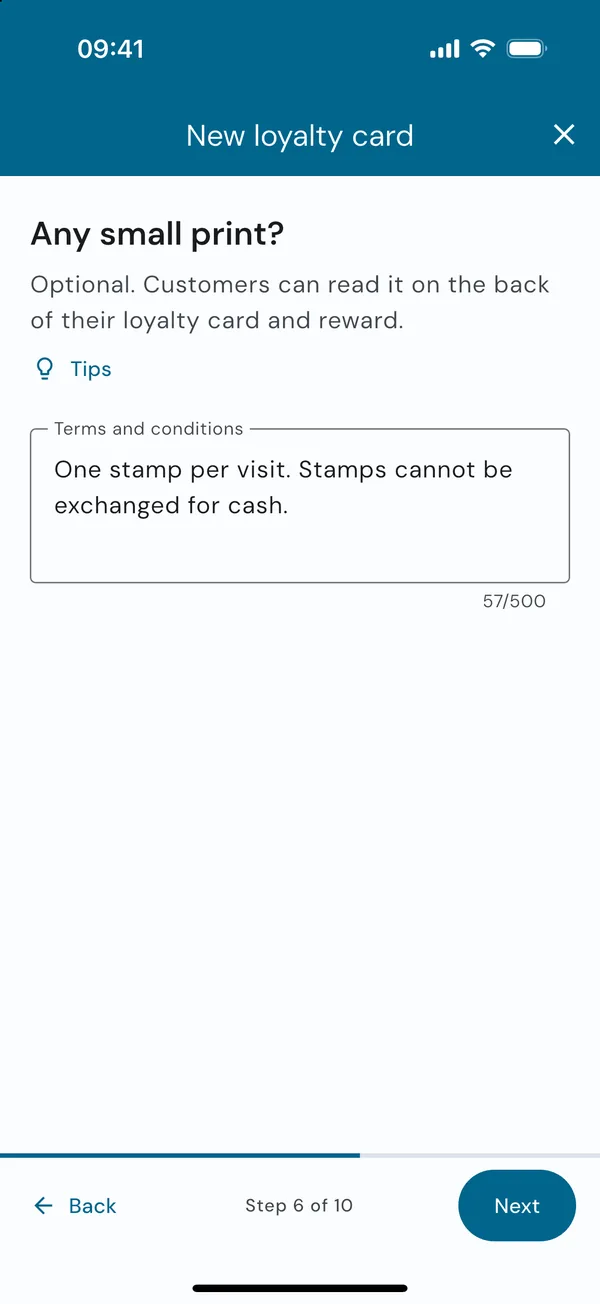
Optional terms and conditions
Customers can read these on the back of their loyalty card and reward. Common rules are one stamp per visit, a minimum spend, or which items count.
Only add rules you'll really apply, and keep each to a short sentence. No conditions? Leave it blank and carry on.
6. Design your card
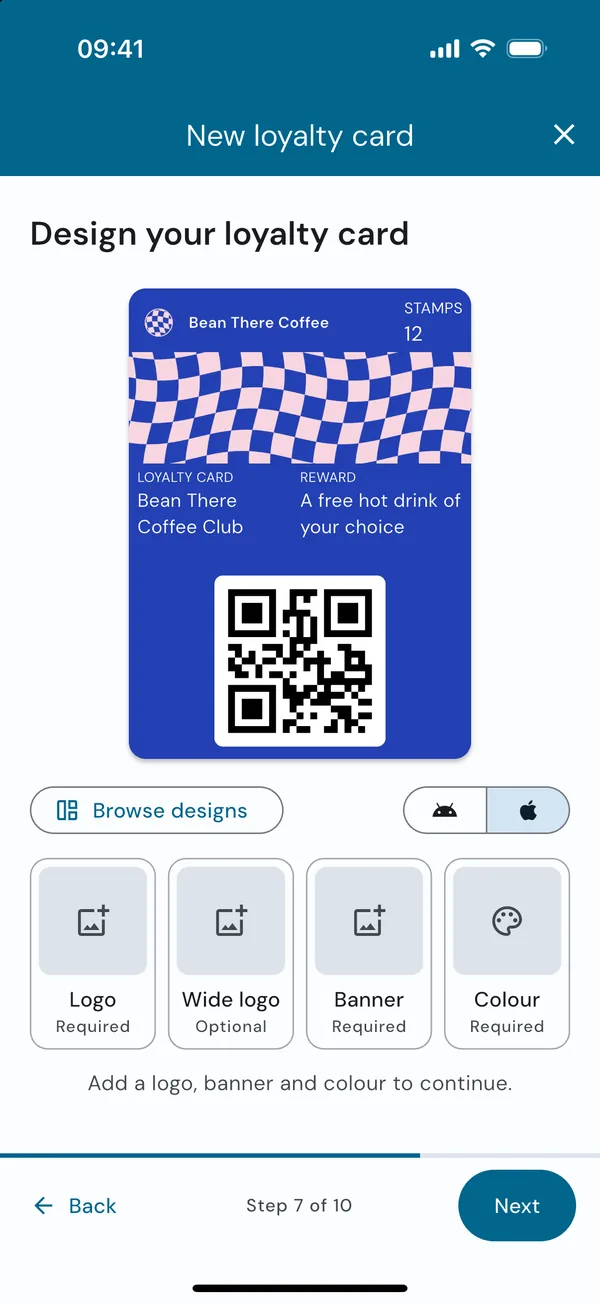
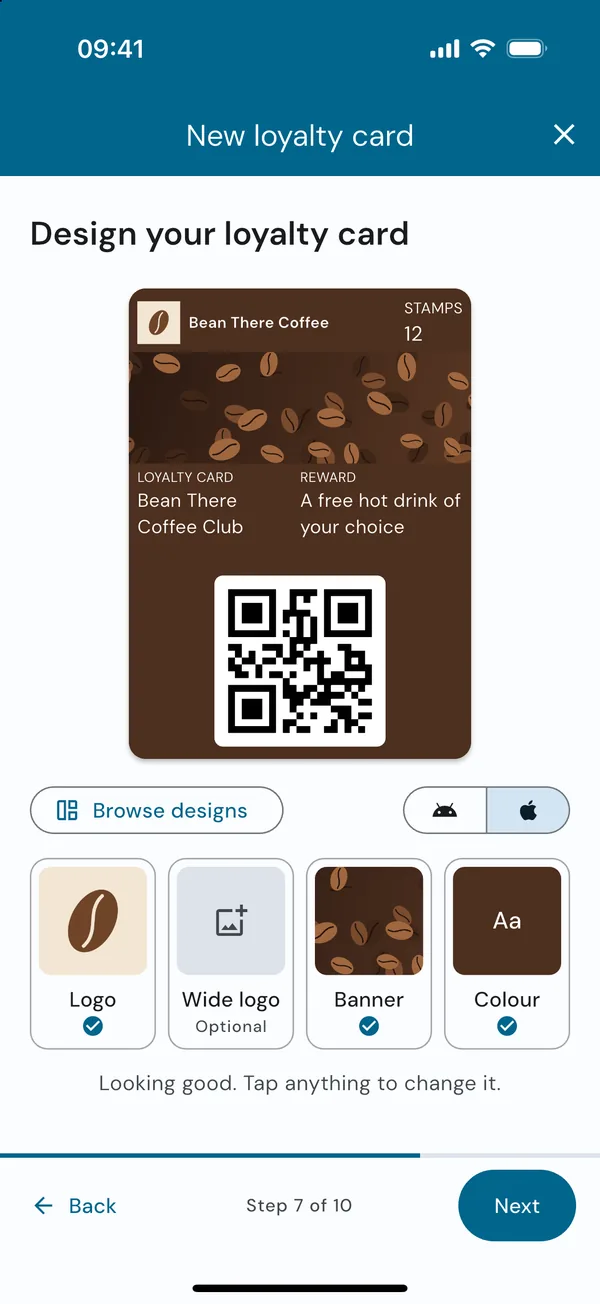
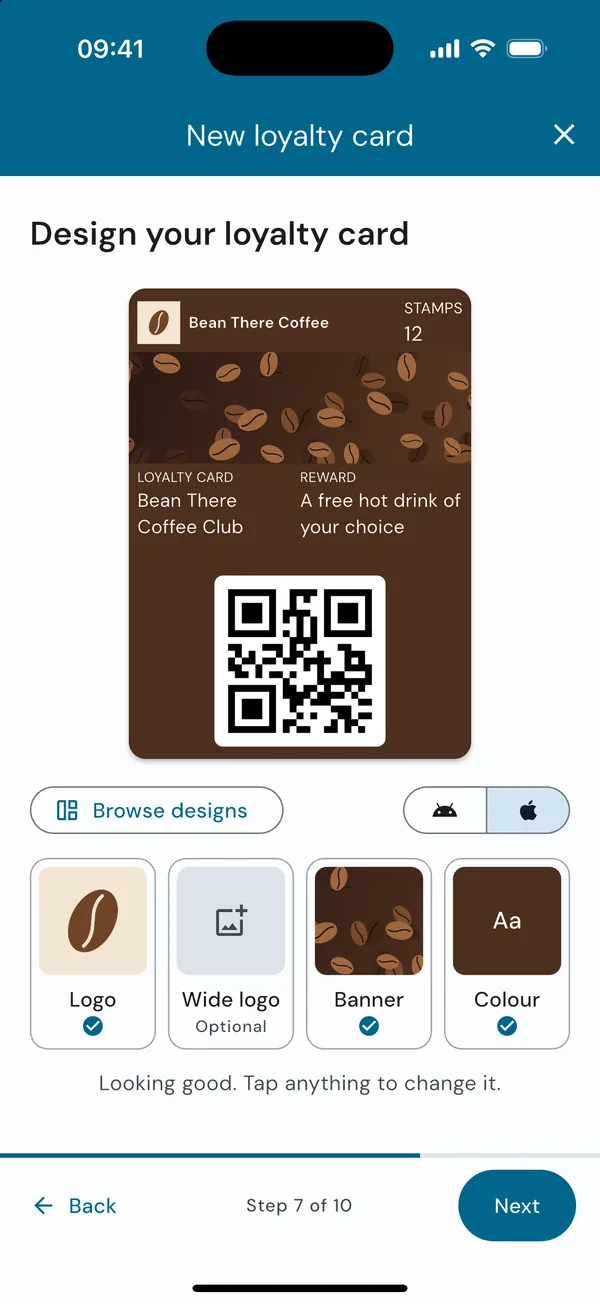
This is where your card gets its look: a logo, an optional wide logo, a banner and a colour. The page starts with a plain Qupons design so you can see the shape of the card, and asks for a logo, banner and colour of your own before you carry on. The fastest way is a ready-made design.
Browse designs
Tap Browse designs and pick one of 25, made for barbers, coffee shops, bakeries, pizza, burgers, ice cream, juice bars, gyms, yoga, florists, pet grooming, car washes, nails and beauty, plus a set of patterns that suit anyone.
A design fills in the logo, banner and colour at once. You can change any part of it afterwards.
Preview and fine-tune
The preview shows your card exactly as it will appear. Switch between Google Wallet and Apple Wallet under the preview to check both.
Tap Logo, Wide logo, Banner or Colour to change it. Each one explains what works best, for example:
- Logo: a simple square mark or initial, at least 660 × 660 px. Google Wallet shows it in a circle, so keep it away from the corners.
- Wide logo: optional. A landscape version of your logo, including your business name, shown across the top of wallet passes and emails.
- Banner: a photo or pattern that shows off your business. Keep faces and anything important away from the edges, and avoid text.
- Colour: the background of the pass. Pick one that looks good with your banner.
Using your own images? Qupons helps you crop them to the right shape for each wallet. When everything is set you'll see "Looking good. Tap anything to change it."
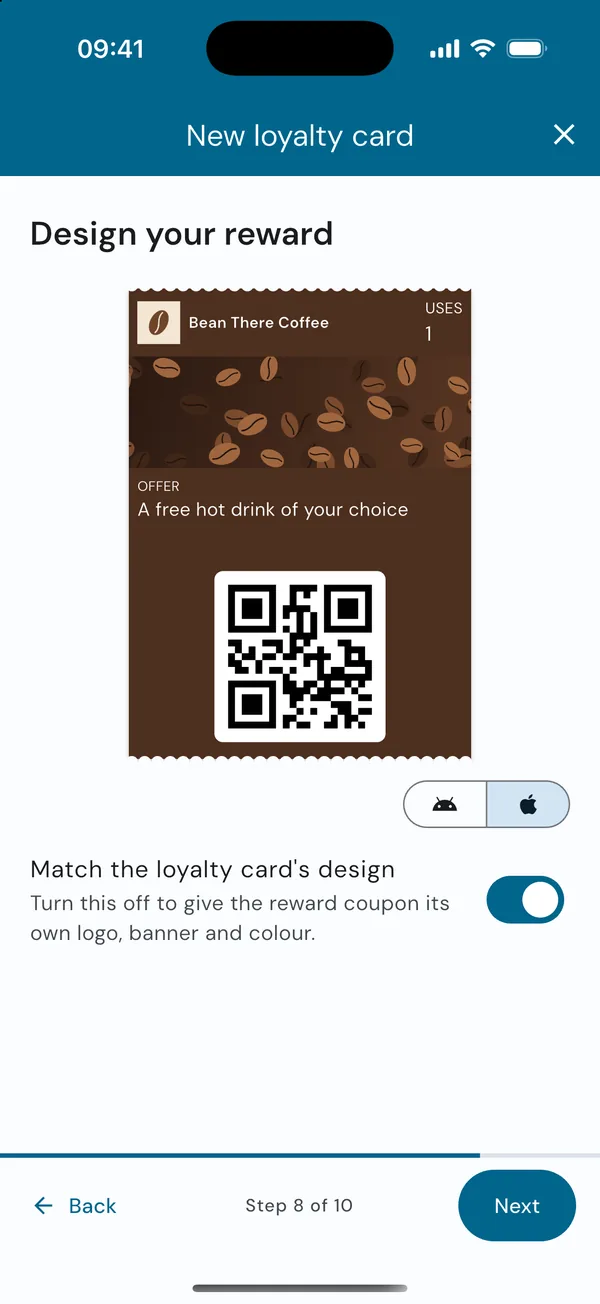
Design your reward
The next page shows the reward coupon. With Match the loyalty card's design on, it looks just like your loyalty card, which suits most businesses.
Want the reward to stand out? Turn it off and give the reward its own logo, banner and colour, the same way as the card.
7. Choose your options
Options that suit most businesses
Both options start switched on. You can leave them as they are.
- Online sign-up gives you a link and QR code customers can use to sign up for a card with their email address. Each email address can get one card. Turn it off if you only want to send cards yourself.
- Start a new card when one is full lets customers keep collecting after earning a reward. Turn it off for a one-off offer.
You can also choose what you call a stamp, like "Coffees" or "Cuts". It's shown on the card next to the count.
Rewards are always emailed to customers automatically when their card is full. Both options can be changed later from the card's Availability.
8. Review and create
Check everything, then create
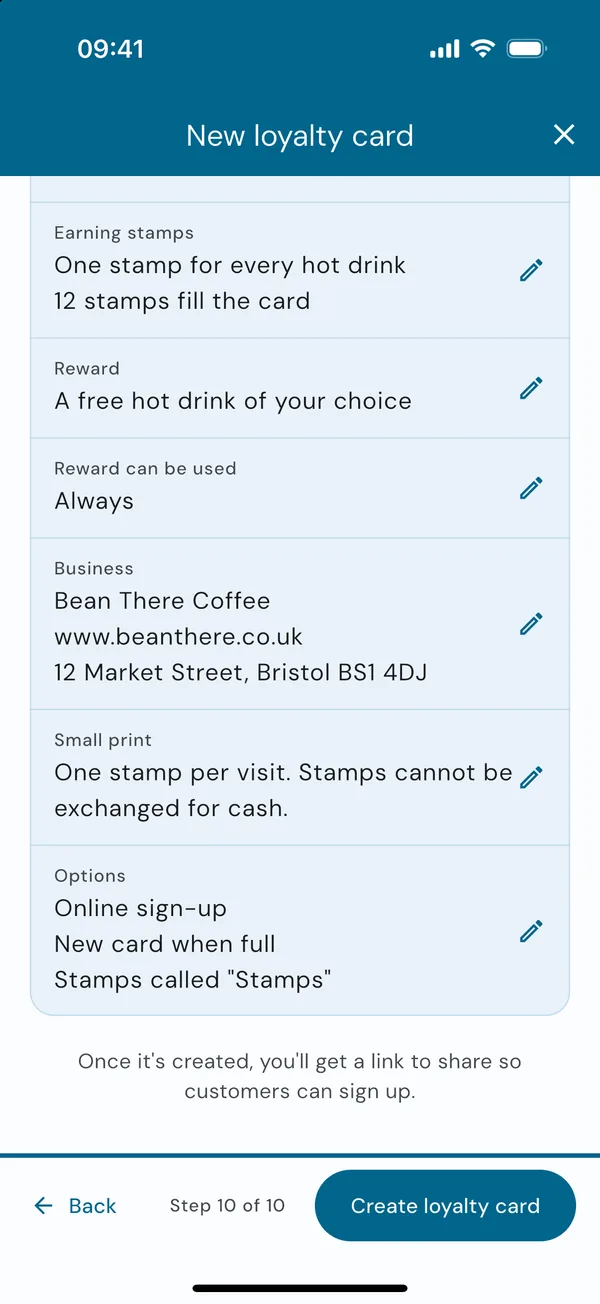
The review page shows the loyalty card and its reward side by side, and every choice you made. Tap the pencil next to anything to jump back and change it; you'll return straight to the review afterwards.
When you're happy, tap Create loyalty card.
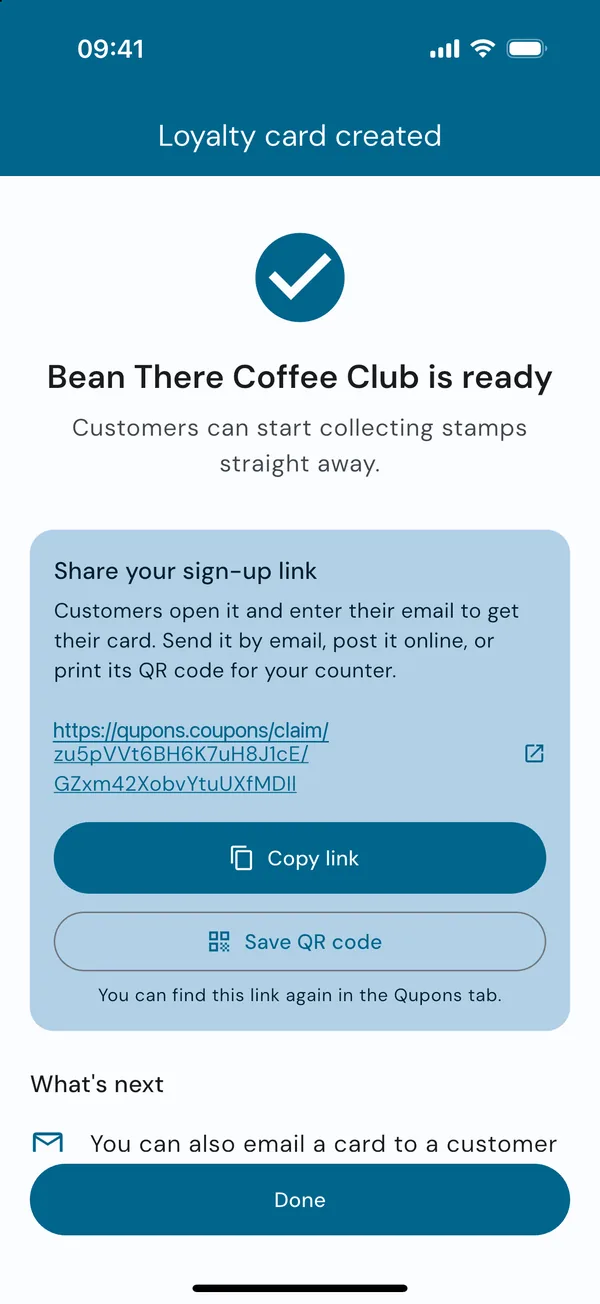
Your card is ready
Customers can start collecting stamps straight away. If you left online sign-up on, you'll see your sign-up link:
- Copy link to share it by email, on social media or on your website.
- Save QR code to save the link as a QR code image, ready to print for your counter.
You can find both again at any time from the card's page in the Qupons tab.
Next: get cards to your customersWhat gets created
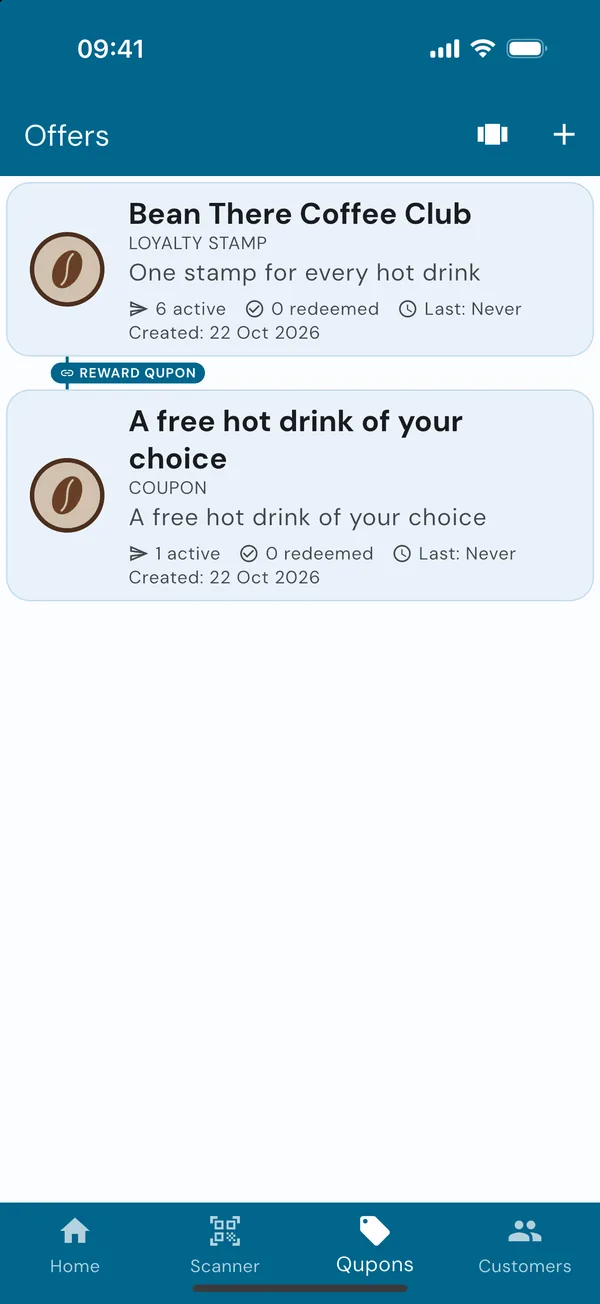
Creating a loyalty card actually creates two offers, and both appear in your Qupons tab:
- The loyalty card (e.g. "Bean There Coffee Club"), which customers sign up for and collect stamps on.
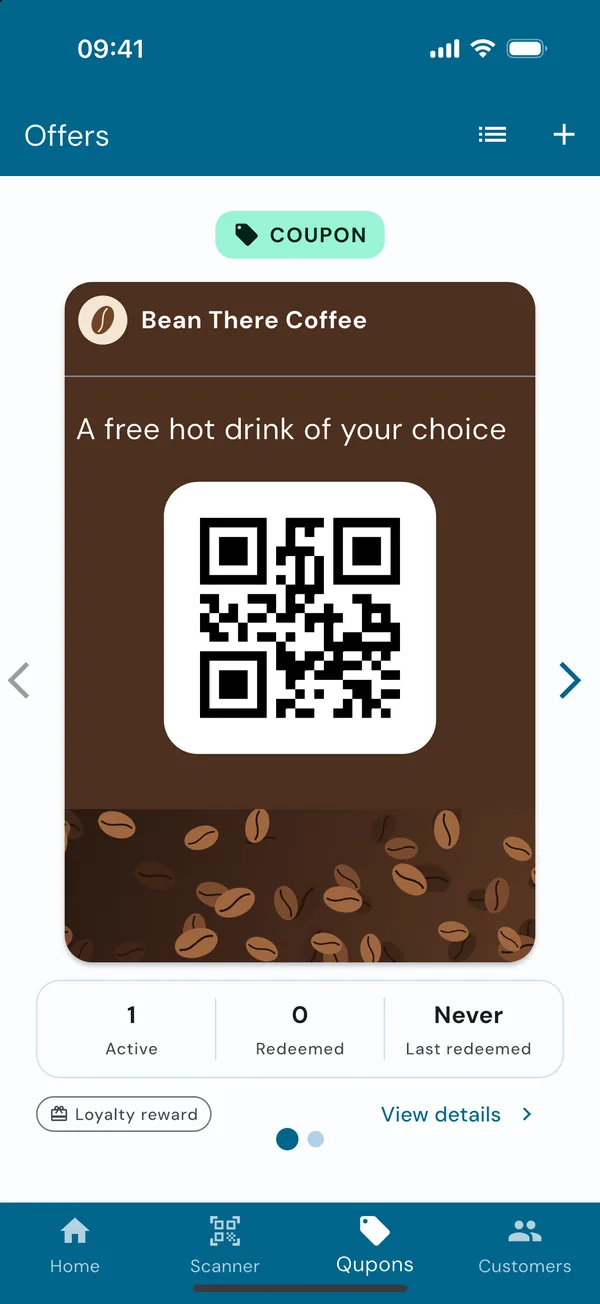
- The reward (e.g. "A free hot drink of your choice"), a coupon that's emailed to customers when their card is full. It's labelled Loyalty reward.
Find them in the Qupons tab
Your offers are listed newest first, each with how many are active, how many times they've been redeemed and when. Tap the icon at the top to swipe between them as cards instead.