Read your statistics
Understand the numbers on your home screen and each offer's redemption charts.
Qupons keeps count of every Qupon you issue and every stamp or redemption, and turns them into simple charts. Statistics are visible to owners and admins. They update as soon as a card is stamped. Pull down on a page to refresh it.
Your home screen
The whole business
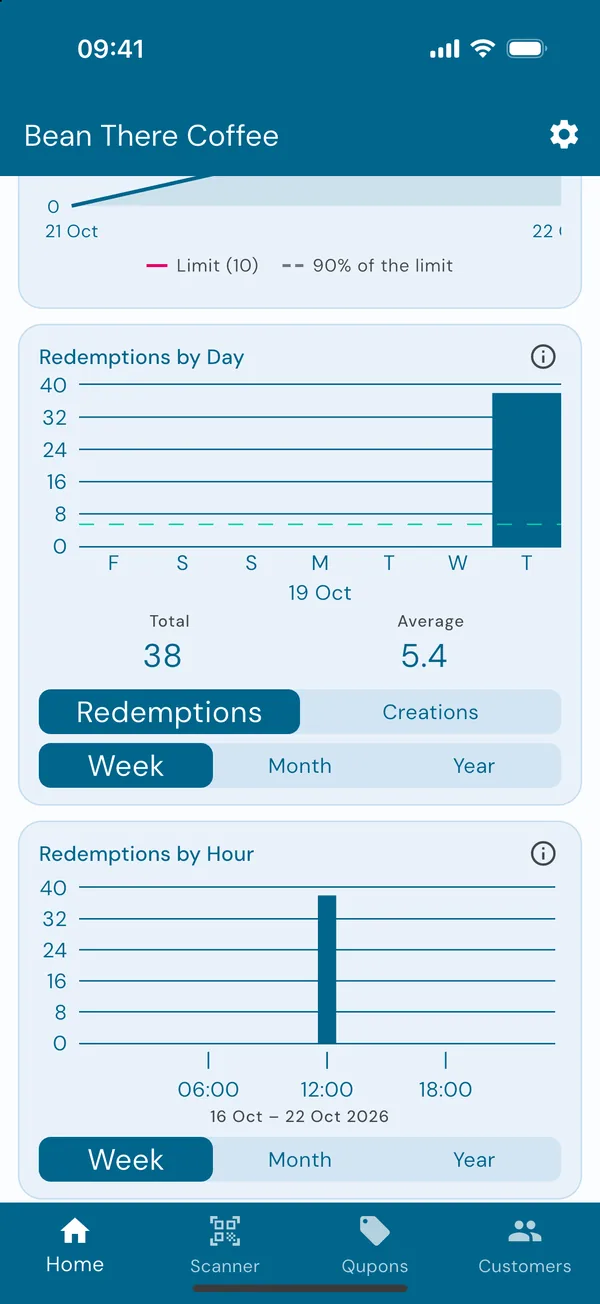
Your home screen shows figures for the whole business:
- Redemptions by Day for the last week or month, or by Week for the last year. Switch to Creations to see how many new Qupons were issued instead. Under the chart are the total for the period and the average, also drawn as a dashed line.
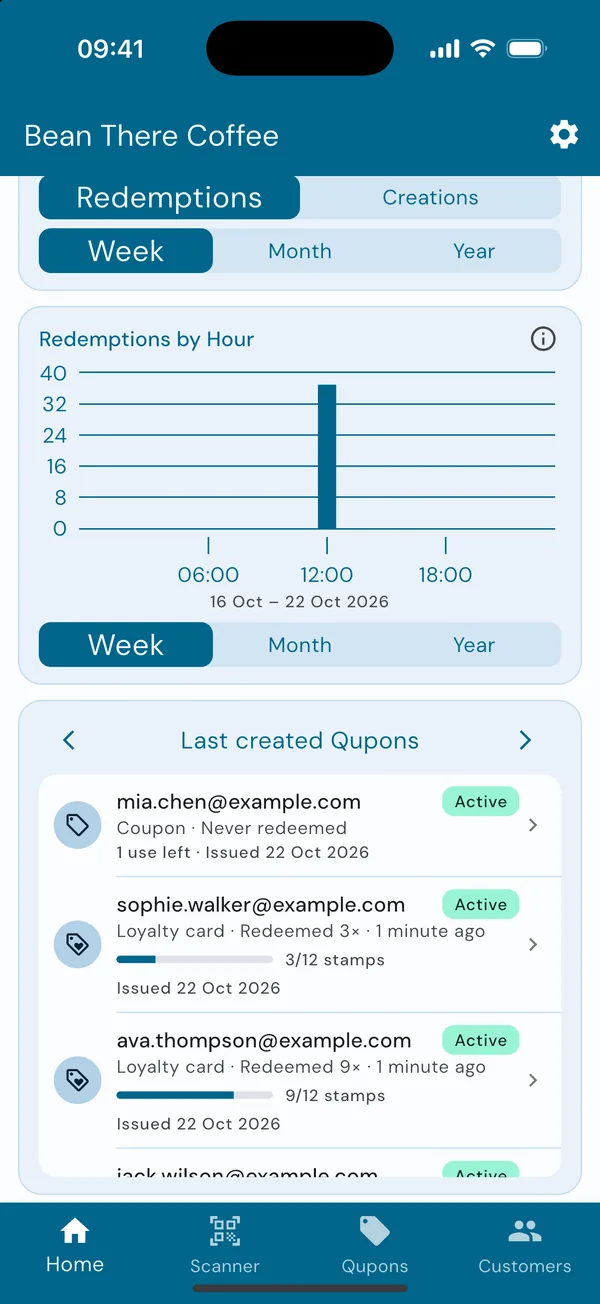
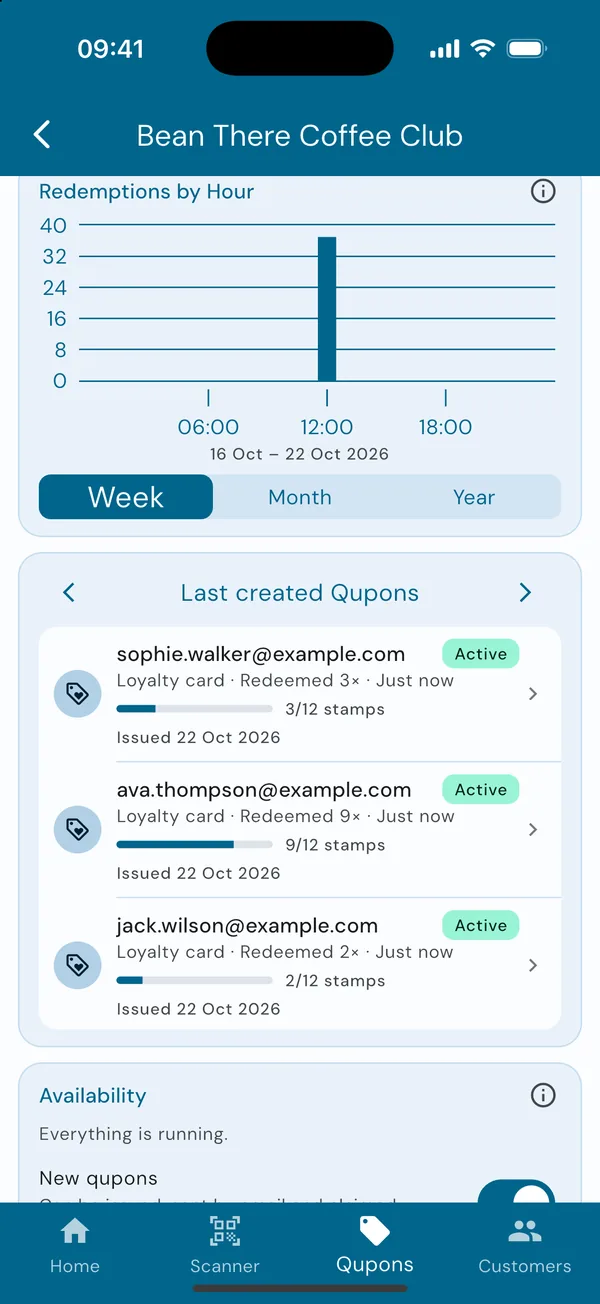
- Redemptions by Hour: your busiest times of day, over the last week, month or year.
- Lists of Qupons: use the arrows to switch between the last created, most redeemed and last redeemed. Tap one to open it.
Not sure what a chart shows? Tap the ⓘ on it for an explanation. Tap a bar to see its date and count.
Your Plan, at the top of the owner's home screen, shows how many active cards you're using out of your plan's limit. See Your plan and active cards.
A single offer
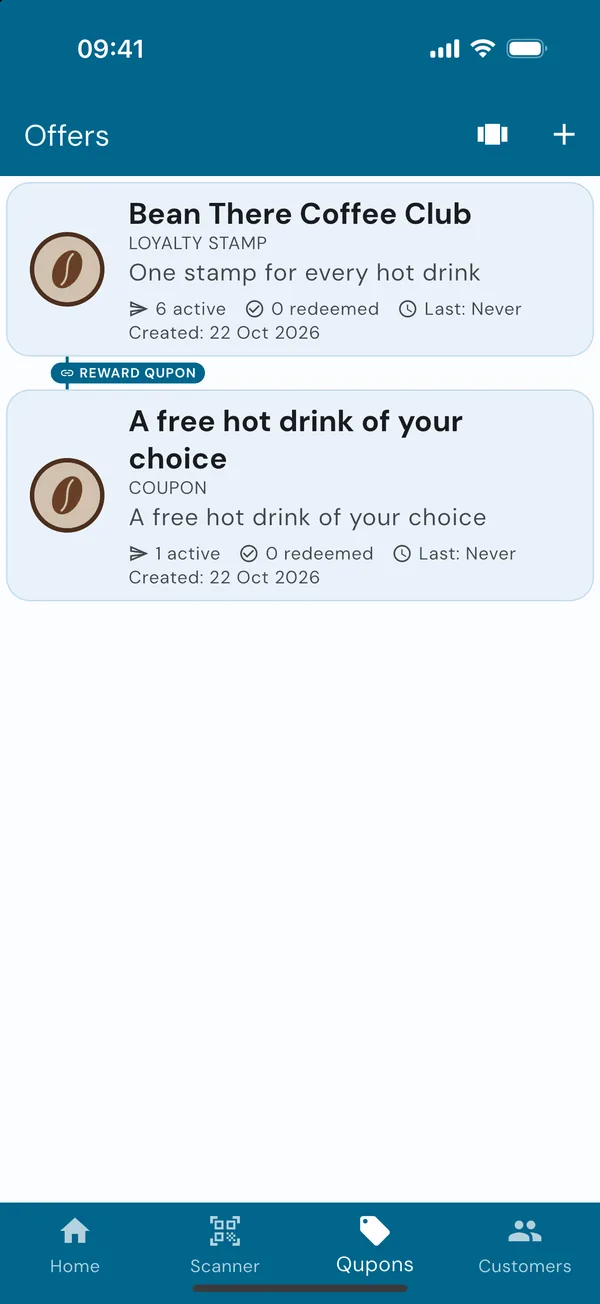
At a glance in the Qupons tab
Every offer in the Qupons tab shows how many of its Qupons are active, how many times they've been redeemed, and when it was last redeemed.
The offer's activity
Open an offer and look under Activity: Active Qupons (customers who can use it now), how many have been issued, the total redemptions, and when it was last redeemed.
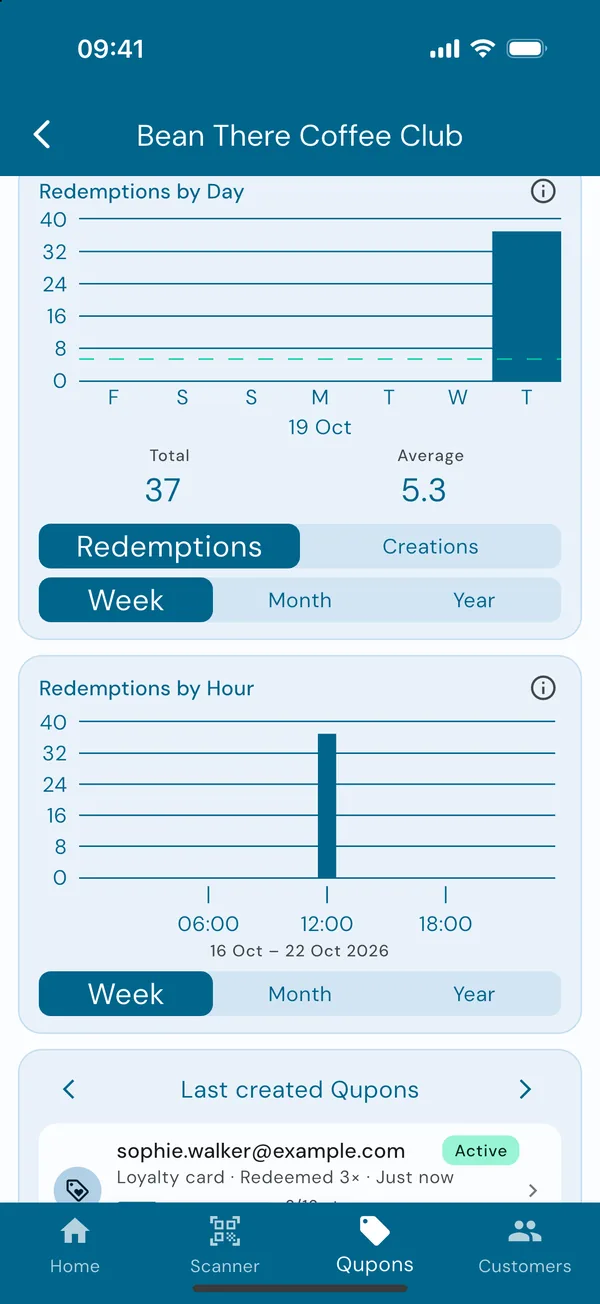
Scroll down for the same Redemptions by Day chart as the home screen, for just this offer.
Your busiest hours
Redemptions by Hour shows what time of day customers use the card. Choose Week, Month or Year to change the period. It's handy for planning staff, or for timing a quiet-hours offer.
Below it are the offer's Qupons. Use the arrows to see the last created, most redeemed or last redeemed, with each customer's progress, and tap one to open it.
Days and hours follow your business's time zone. Check it's right in Settings → Update Business Details. Deleted customers and cancelled Qupons still count, so your history stays complete.
Making sense of the numbers
- Lots issued, few redeemed? Customers may not know how to use their card. Mention it at the till, and share our customer guide.
- Plenty of redemptions, but few full cards? Your card might need too many stamps. Fewer stamps and a smaller reward often work better.
- A quiet spell every day? That's a good time for a promotion to bring customers in.