Set up your account and business
Create your Qupons account, confirm your email and tell us about your business. It takes about two minutes.
Everything in Qupons happens in the app, so the first step is getting it on your phone. Qupons is coming soon to the App Store and Google Play. Once it's installed, setting up takes about two minutes.
Joining someone else's business? If your employer has invited you to their team, sign up with the email address the invite was sent to. You'll be offered the invite instead of setting up a business. See Work as a team.
Create your account
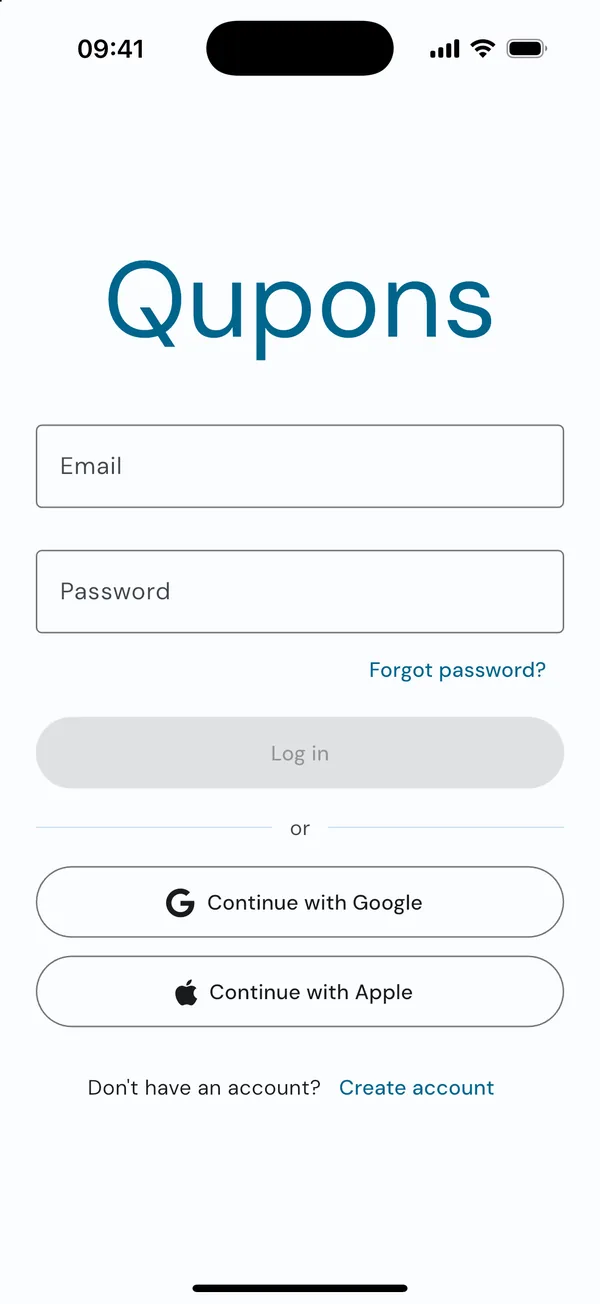
Open the app and choose how to sign in
You can sign in with your Google or Apple account, or use an email address and password. If you're using email, tap Create account.
Already have an account? Enter your email and password and tap Log in. If you've forgotten your password, tap Forgot password? and we'll email you a reset link.
Enter your details
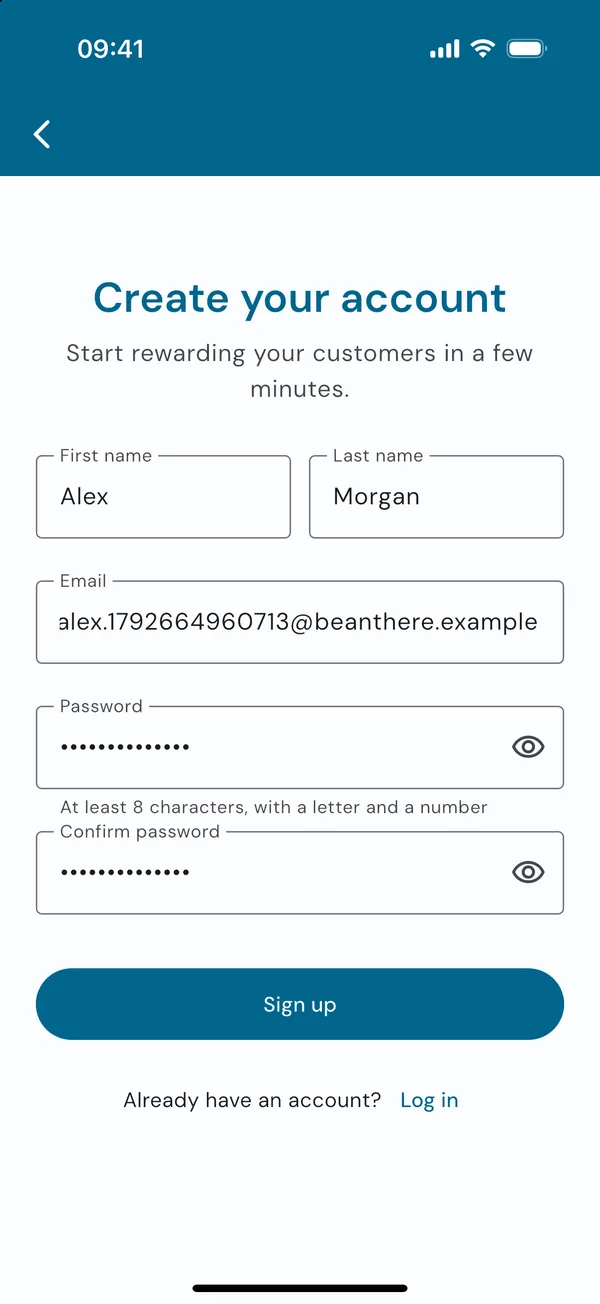
On Create your account, fill in your first name, last name, email address and a password of at least 8 characters, with a letter and a number. Confirm the password and tap Sign up.
Your name is only shown to your team. Customers see your business name, never yours.
Confirm your email
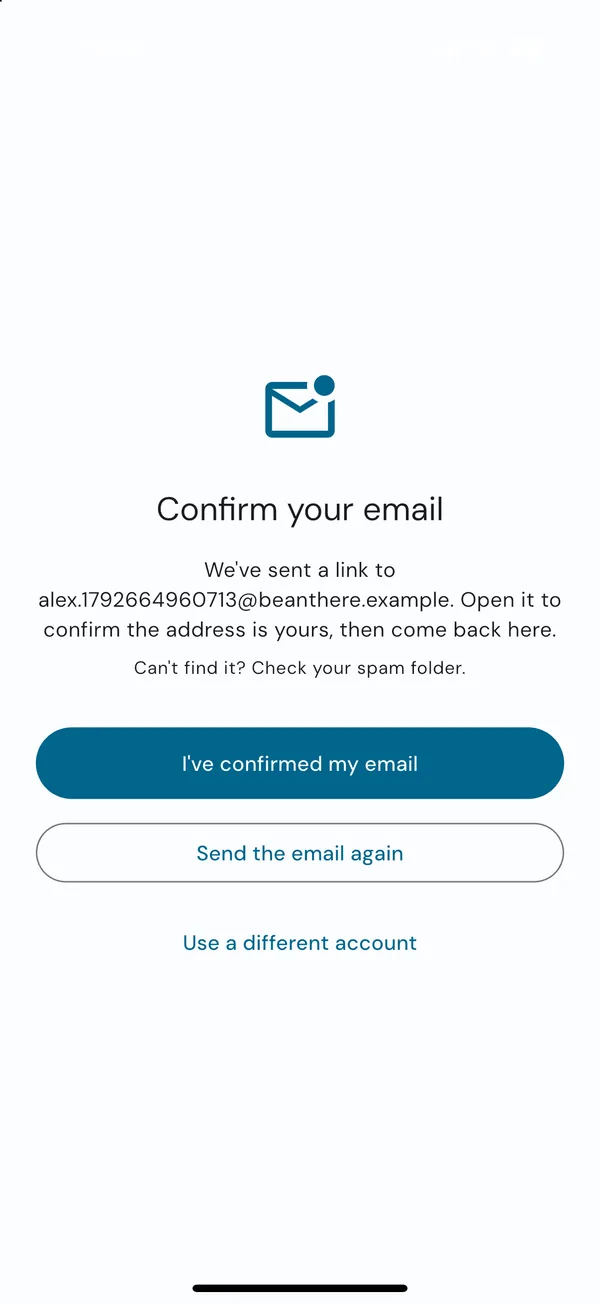
We email you a link to check the address is yours. Open the email, tap the link, then come back to the app. It notices on its own, or you can tap I've confirmed my email.
Can't find it? Check your spam folder, or tap Send the email again. Signed up with the wrong address? Tap Use a different account.
Signing in with Google or Apple skips this step.
Set up your business
Once your email is confirmed, a new account goes straight to the business setup. It has two short steps.
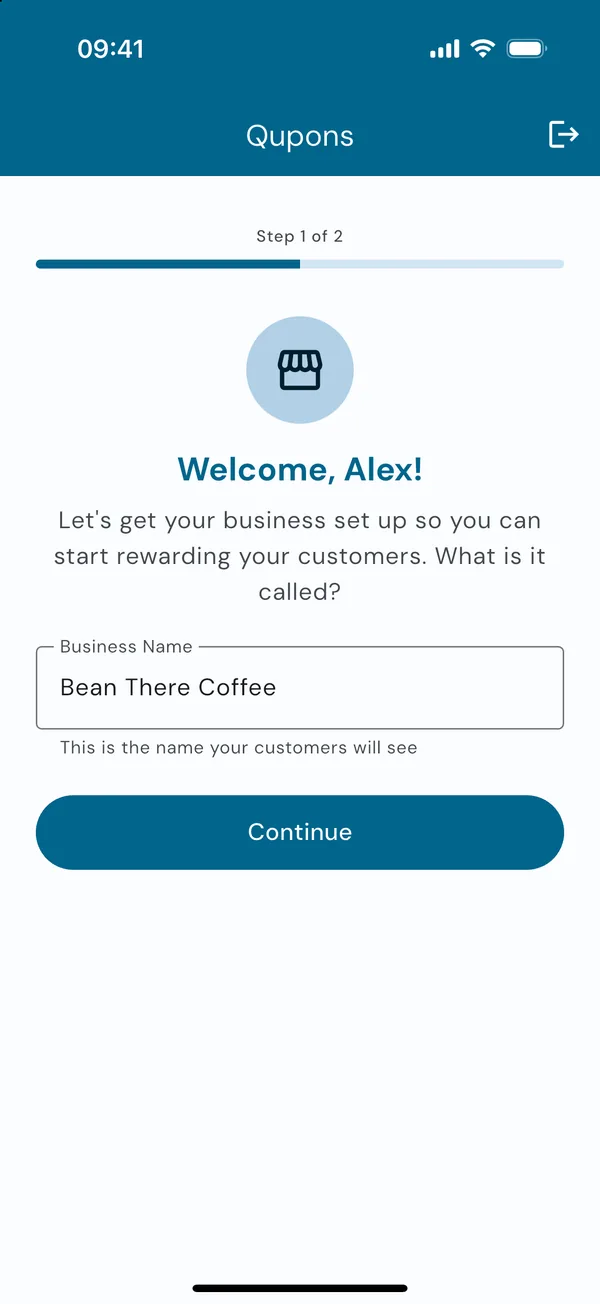
Name your business
Enter your business name exactly as customers know it. It appears on every loyalty card, wallet pass and email you send, and as the sender name on those emails.
Tap Continue.
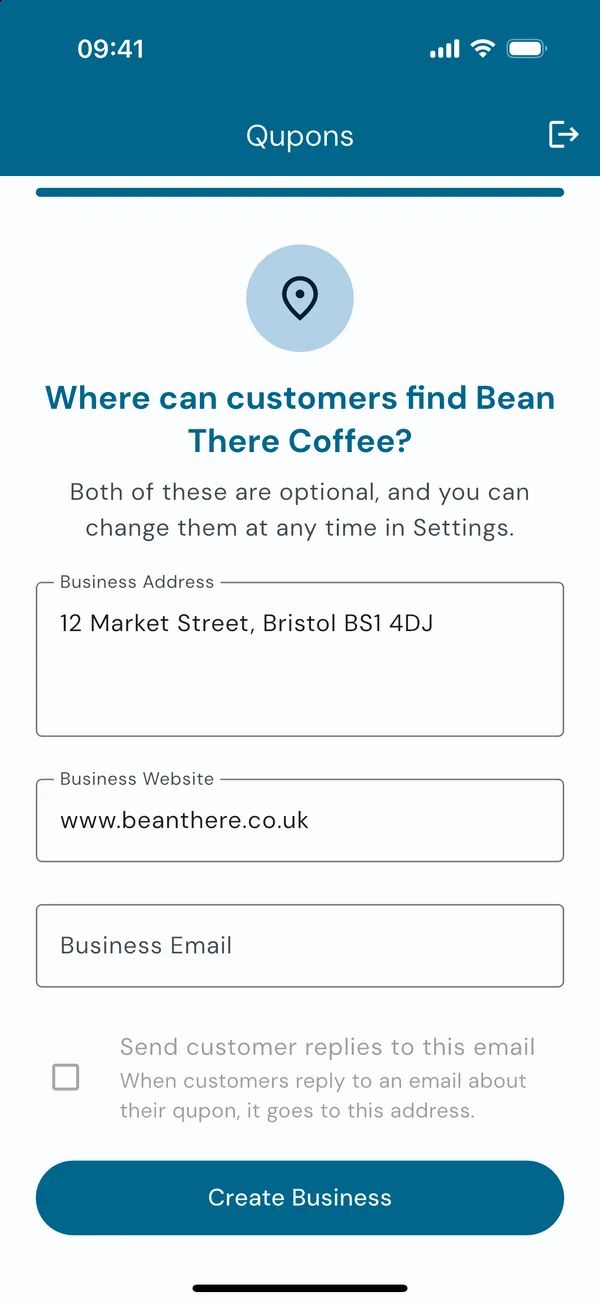
Tell customers where to find you
Add your address and website. They're optional, but they're shown on your customers' wallet passes, which makes it easy for them to find you or look you up.
You can also add a business email. Tick Send customer replies to this email and when a customer replies to an email about their card, it comes to you.
Tap Create Business.
You're in
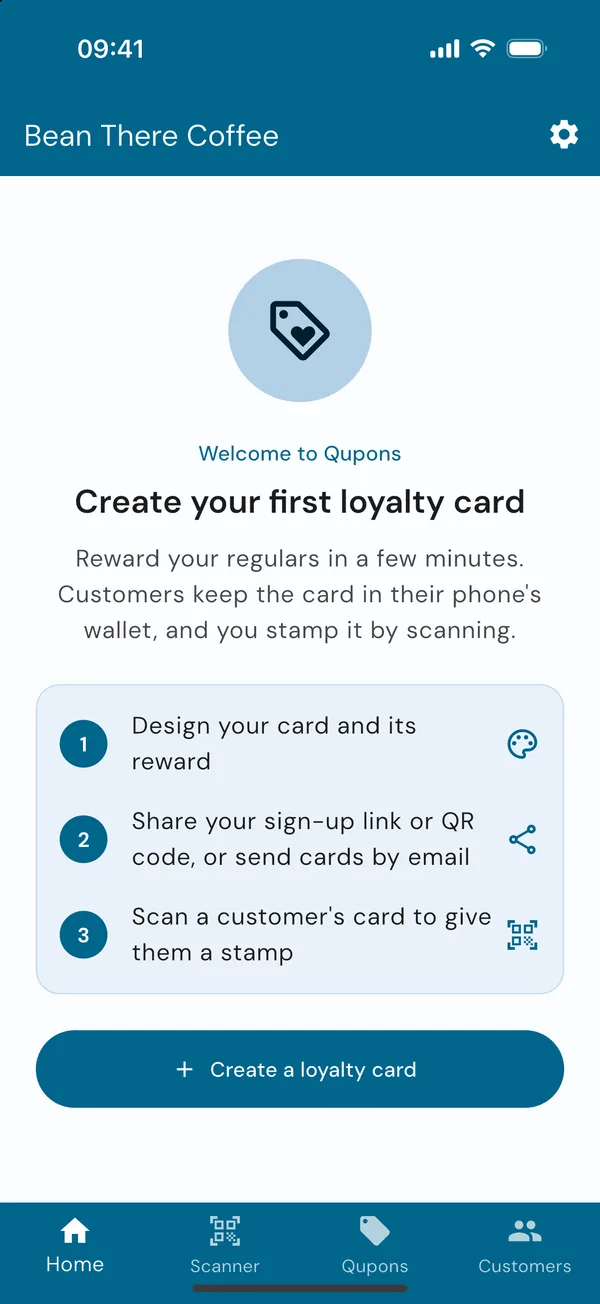
You'll land on your home screen, titled with your business name, with the three steps to your first loyalty card. Along the bottom are the four tabs you'll use every day:
- Home: your statistics and plan
- Scanner: scan customers' Qupons at the till
- Qupons: your loyalty cards and coupons
- Customers: everyone who holds one of your Qupons
The cog at the top right opens Settings.
What next?
Tap Create a loyalty card on your home screen to design your first card. Once you have one, your home screen fills with your plan and statistics instead.
Tip: you can change your business name, address, website, email and time zone at any time from Settings → Update Business Details.