Account and business settings
Update your business details, time zone and language, run more than one business, and manage or delete your account.
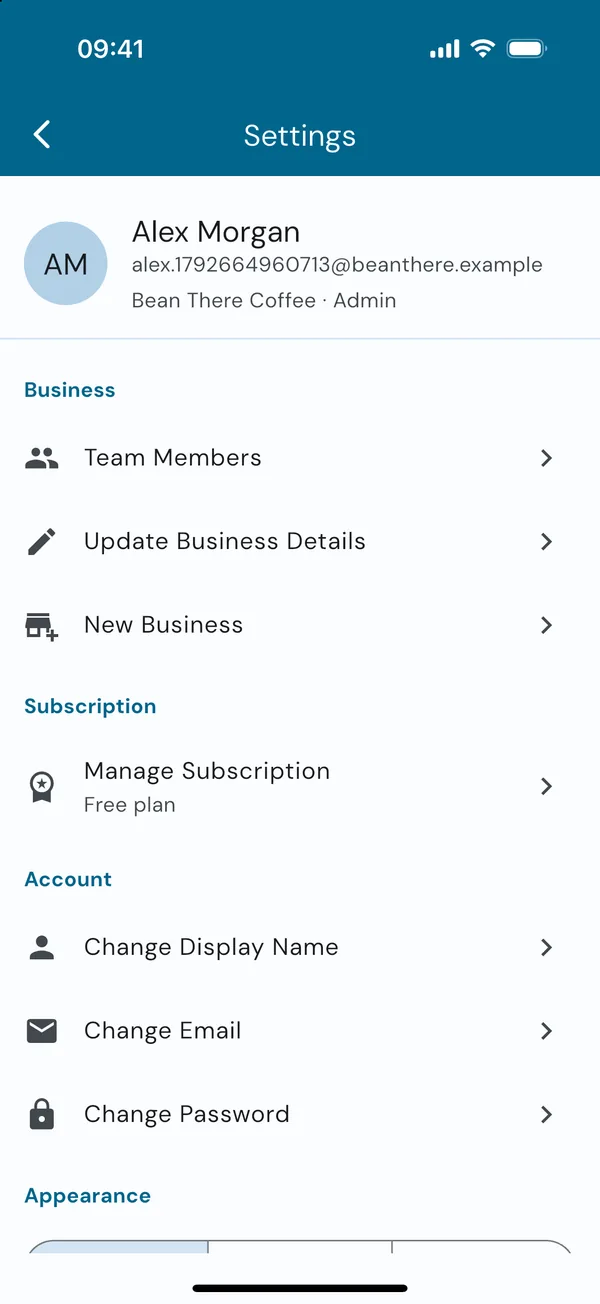
Open Settings from the cog at the top right of your home screen. At the top you'll see your name, email address, and your business and role.
What's in Settings
- Business: team members, received invites, business details and new businesses.
- Subscription: your plan (owners only).
- Account: your name, email address and password.
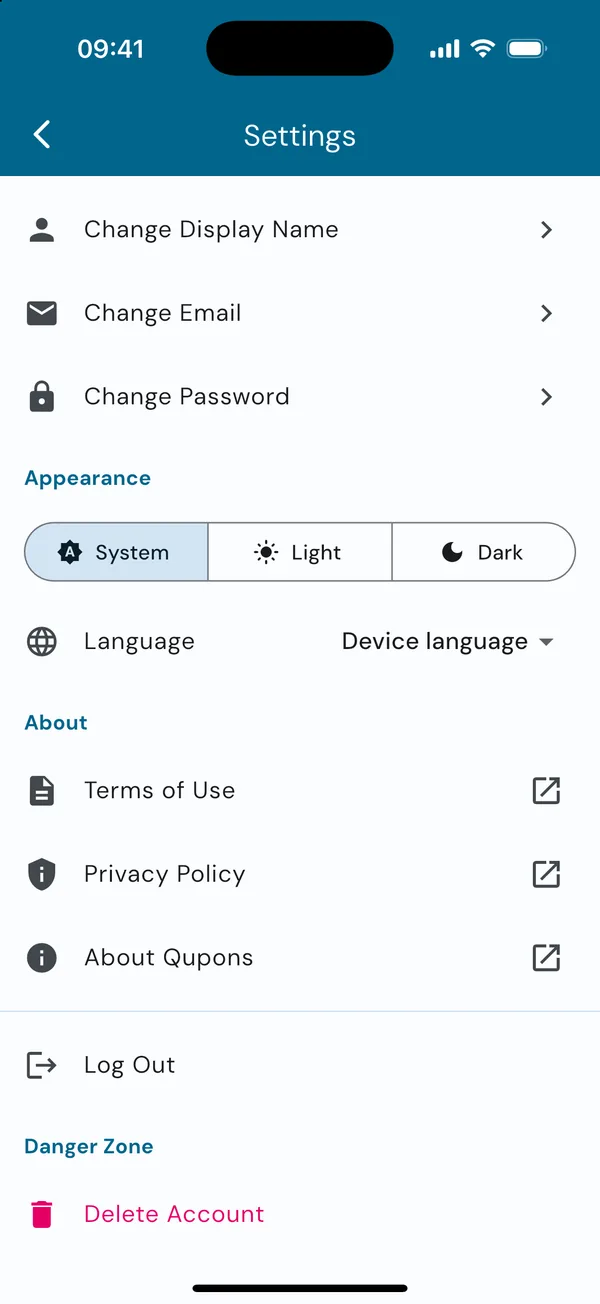
- Appearance: light, dark, or follow your phone.
- Language: the language the app is in.
- About: our terms of use, privacy policy, information about Qupons and the app version.
- Log Out and, in the Danger Zone, Delete Account.
Your business
Update business details
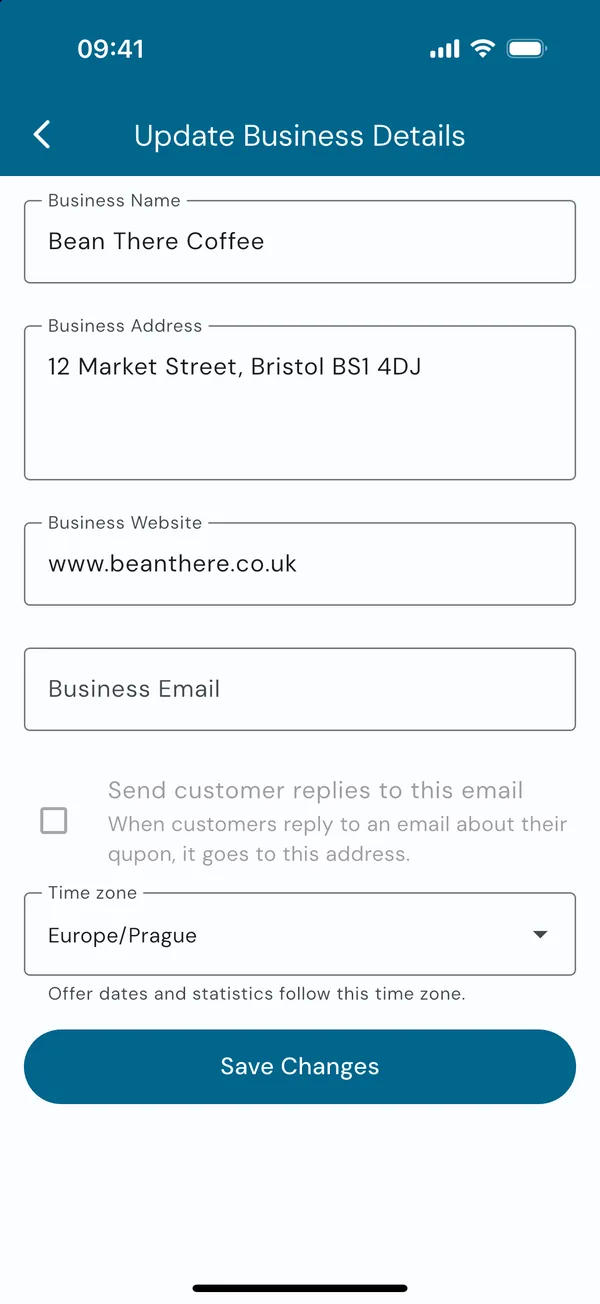
Admins can change the business details from Settings → Update Business Details:
- Name, address and website appear on new Qupons and in emails to customers.
- Business email is optional. Tick Send customer replies to this email and when customers reply to an email about their Qupon, it comes to you.
- Time zone is set from your phone when you create the business. Offer dates and your statistics follow it, so change it if your business is somewhere else.
Tap Save Changes.
Run more than one business
Have a second shop, or a different kind of business? Tap New Business, enter its details and tap Create Business. You'll be its admin, with its own cards, customers and team. Your plan's limits are shared across all the businesses you own, and your plan sets how many businesses you can own.
Received invites
If another business has invited you to their team, the invite appears under Received Invites. Tap Accept to join, or Decline.
Your plan
Owners can tap Manage Subscription to see the plans, upgrade, or restore a purchase made on another phone. Plans are billed through the App Store or Google Play, so you manage renewals and cancellations there. If you're not the owner you'll see "Managed by the business owner".
See Your plan and active cards for how plans are measured, and pricing for what each plan includes.
Your account
- Change Display Name updates the name your team sees.
- Change Email and Change Password ask for your current password first, to keep your account safe.
- Forgotten your password? Log out, then tap Forgot password? on the sign-in screen.
Appearance and language
Choose System to follow your phone's light or dark mode, or pick Light or Dark to always use one. Your choice is remembered on that phone.
The app is in English, Deutsch, Español, Français and Italiano. It follows your phone's language (Device language), or choose one under Language. Your customers' emails and passes follow their own language, not yours.
Delete your account
Tap Delete Account in the Danger Zone, then type the code shown to confirm. What happens depends on your business:
- You're the only person on the team: your account and the business are deleted together. Customers with active Qupons are emailed, and their wallet passes stop working.
- You're on someone else's team: you're taken off the team and your account is deleted. The business carries on without you.
- You own a business that others are on the team of: remove the other members first, so the business and its customers aren't deleted out from under them. If you'd like to hand the business over instead, contact us.
Paying for a plan? Cancel it in the App Store or Google Play first. Deleting your account wouldn't stop the store charging you, so Qupons won't delete it while your subscription is set to renew. A cancelled subscription that hasn't run out yet doesn't stop you. Deleting an account can't be undone.