Stamp cards and redeem coupons
Scan a customer's Qupon at the till, or find it by email and slide to redeem.
When a customer shows you their Qupon, you either scan its QR code or, if they've forgotten their phone, find them and slide to redeem. For a loyalty card, redeeming adds a stamp. For a coupon, it uses it up.
Scan a Qupon
Open the scanner
Tap Scanner at the bottom of the app. The first time, your phone asks for permission to use the camera: tap Allow.
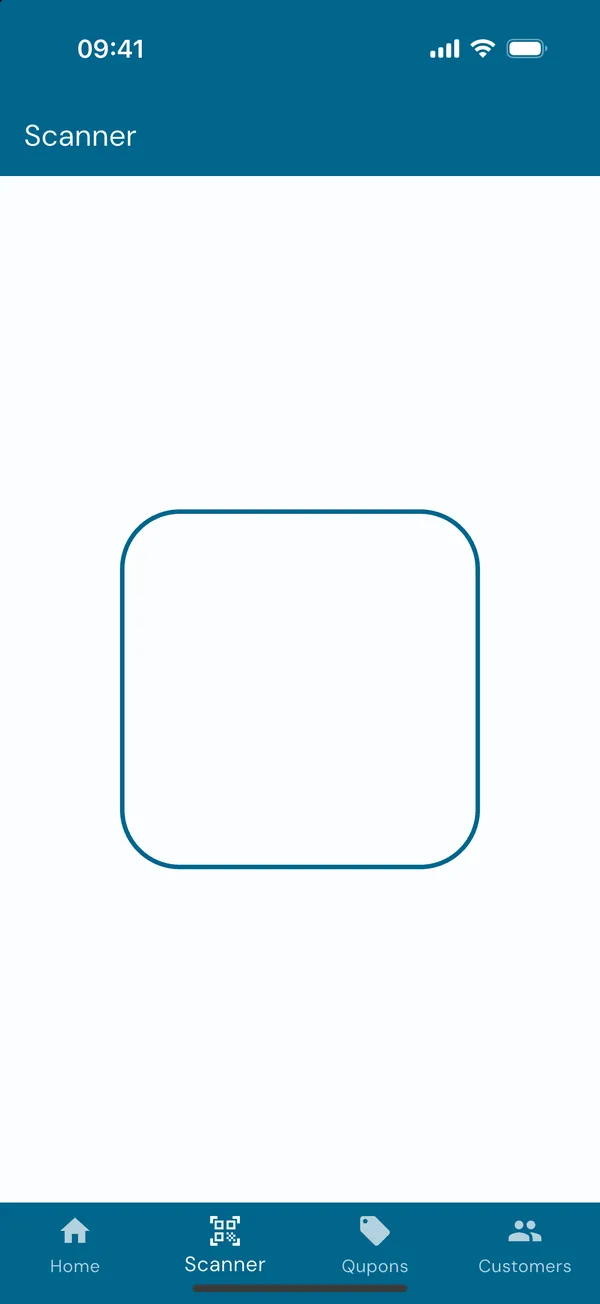
Point the camera at the QR code on the customer's phone so it sits inside the frame. It's picked up automatically; there's no button to press.
Check and redeem
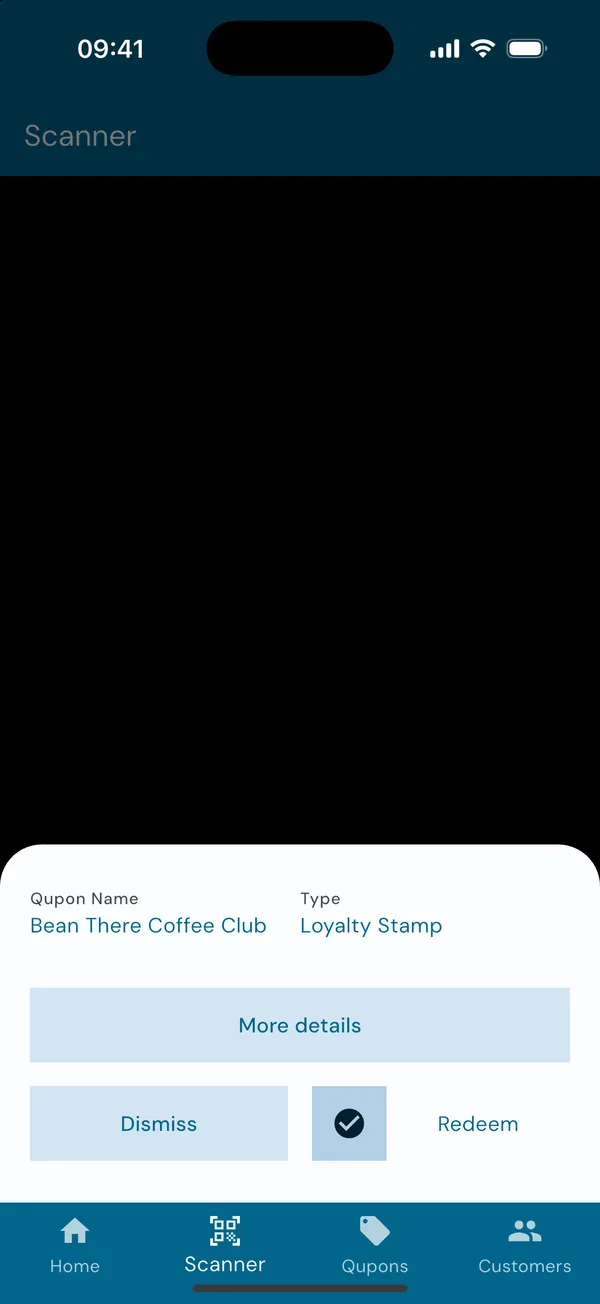
A summary slides up showing the card's name and type. Slide the tick across to Redeem to add the stamp, or tap Dismiss to cancel.
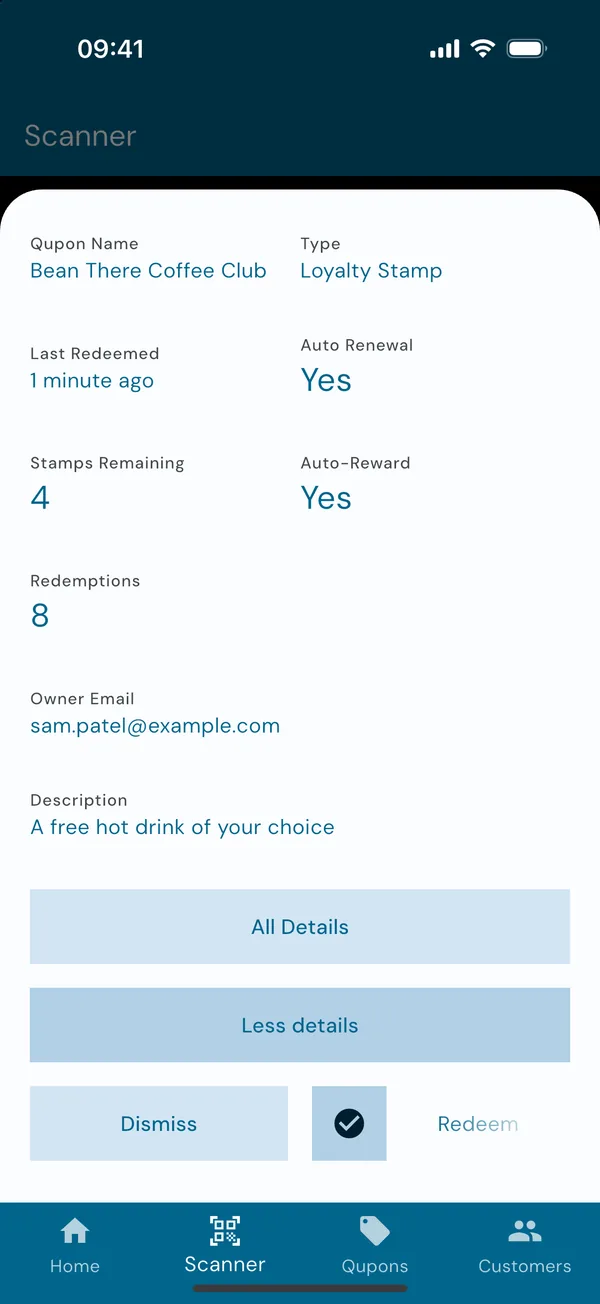
Tap More details to see whose card it is, how many stamps they have left before their reward, and when they last visited.
See their progress
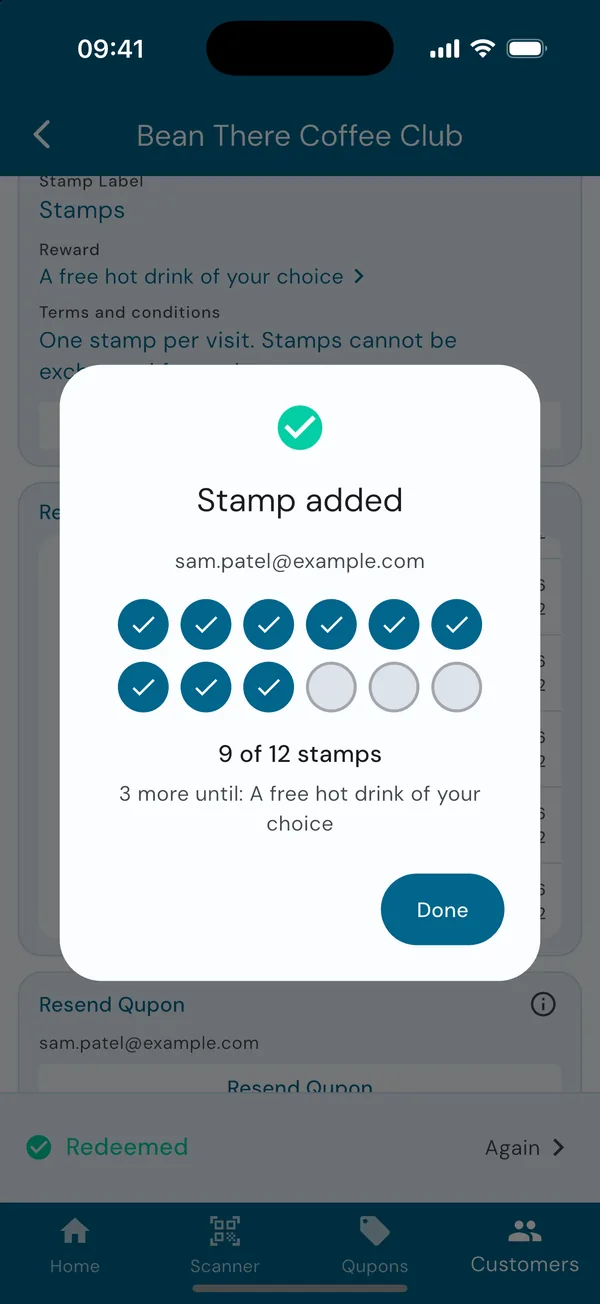
For a loyalty card, Stamp added pops up straight away with the customer's card, such as "8 of 12 stamps" and "4 more until: A free hot drink of your choice", so you can tell them where they stand.
On the stamp that fills it, you'll see Card complete!, that a reward Qupon is on its way to the customer, and whether a new card has started. Tap Done.
Redeem without scanning
For a customer who's forgotten their phone, or whose screen is cracked.
Find their Qupon
Search for the customer by email in the Customers tab and choose their Qupon. Admins can also open the card in the Qupons tab and pick them from its lists of Qupons.
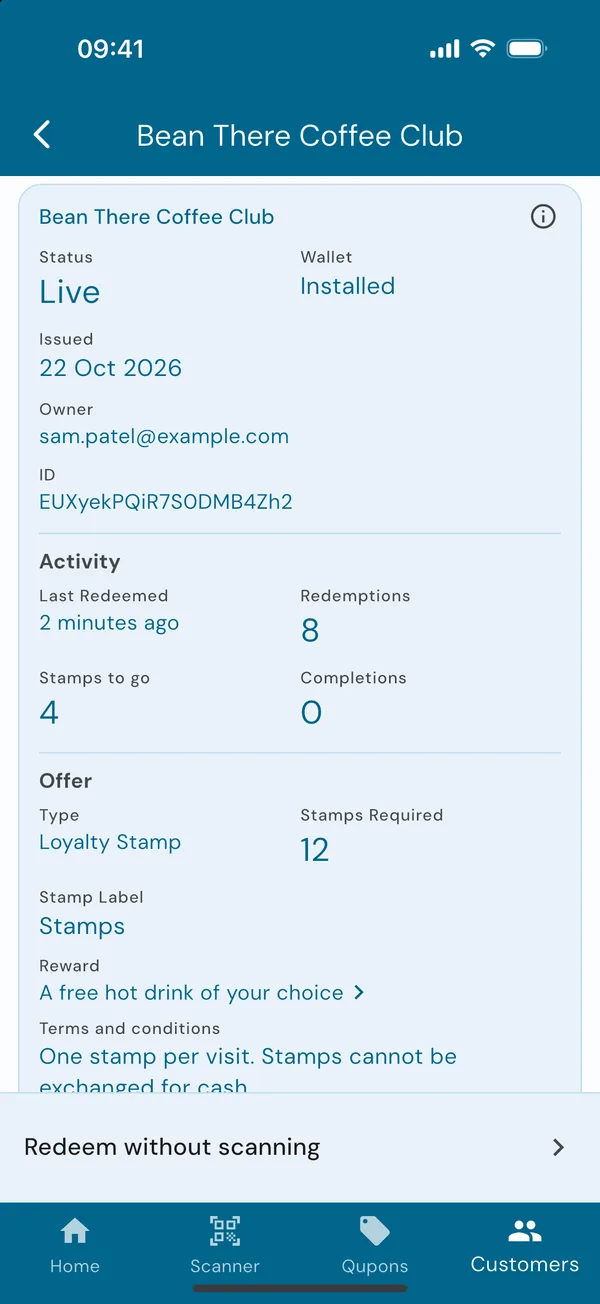
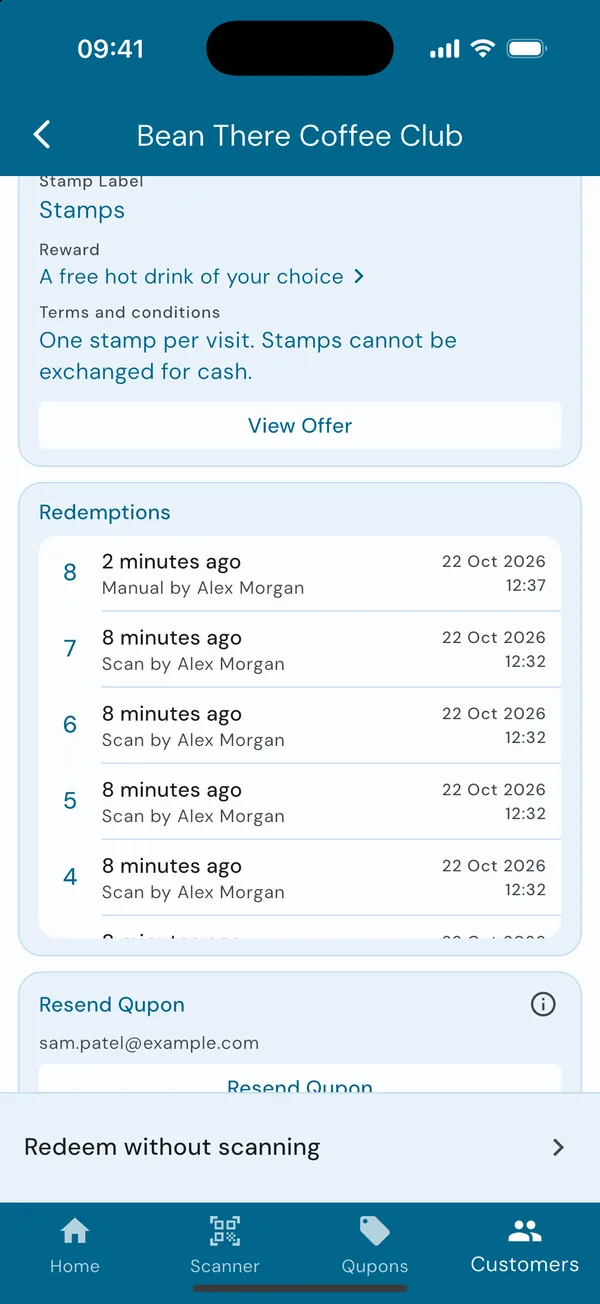
Their Qupon shows its status, how many stamps to go, and every past redemption with who made it.
Slide to redeem
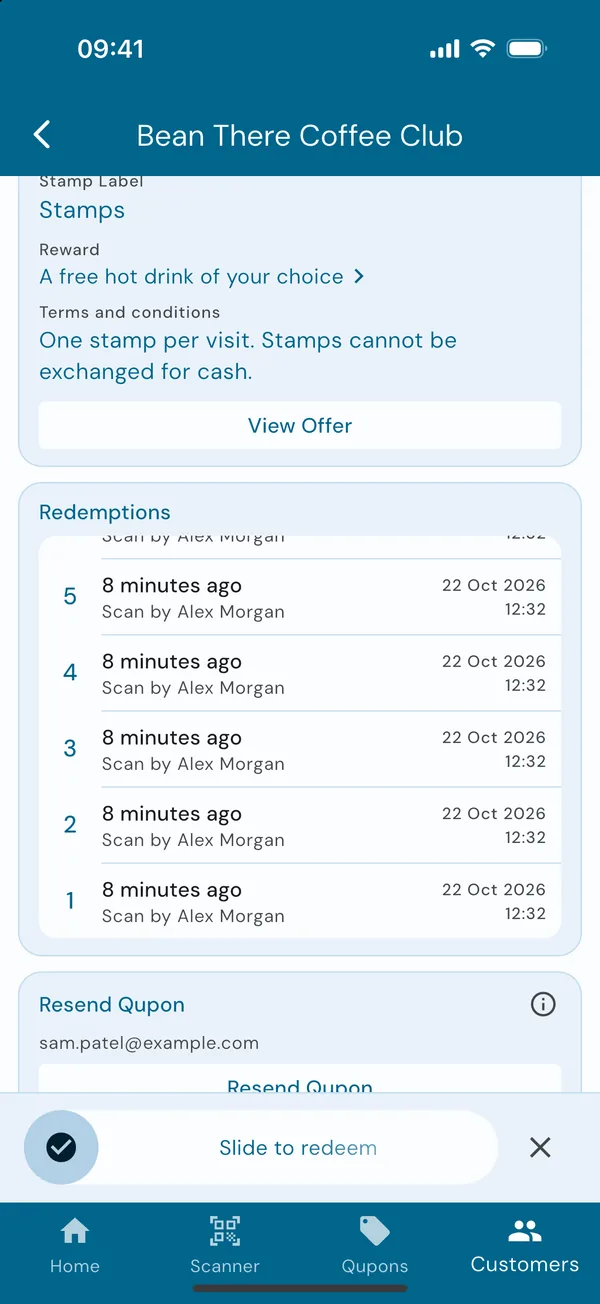
Tap Redeem without scanning at the bottom of the screen, then drag the button all the way along Slide to redeem. The slide means a card can't be stamped by an accidental tap.
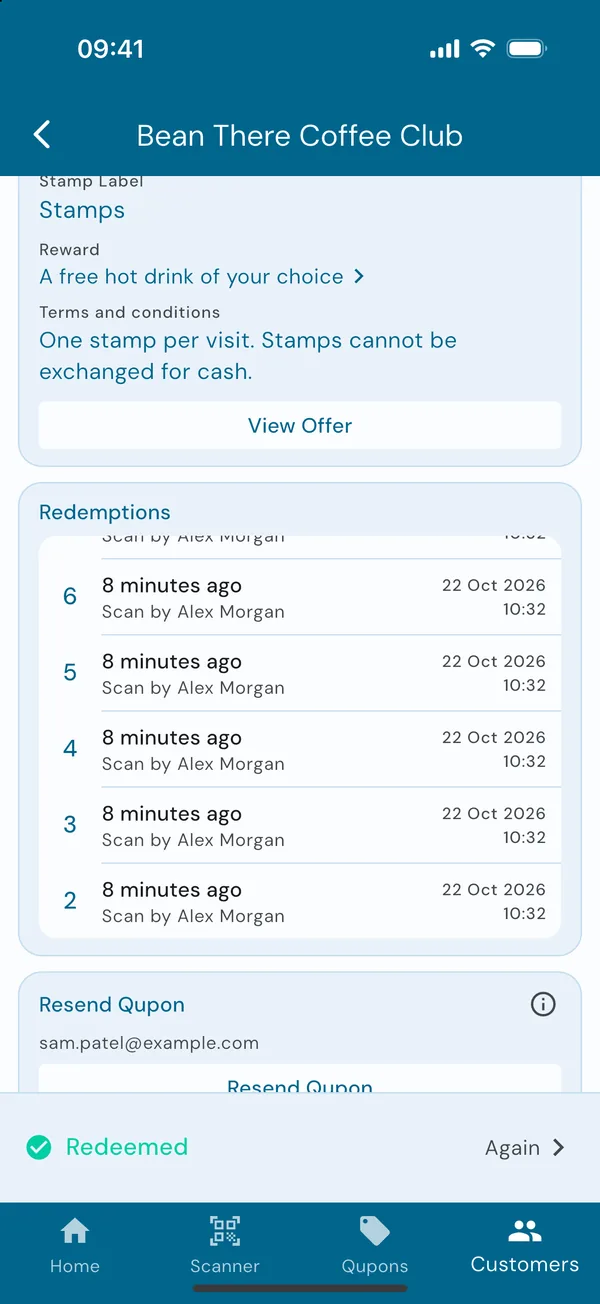
The same Stamp added popup shows their progress. Tap Done and you'll see Redeemed, with the new stamp at the top of the history, marked Manual.
What Qupons checks
Whether you scan or slide, every redemption goes through the same checks before anything is recorded.
When it says no
| Message | What it means | What to do |
|---|---|---|
| This Qupon is not owned by your business | It's a card from a different business that also uses Qupons. | Ask the customer to find your card in their wallet, or send them one. |
| Qupon Not Redeemable: fully redeemed, or the loyalty card is complete | A coupon that's already been used, or a full loyalty card that doesn't start again. | Check the redemption history. If it's a mistake, send them a new one. |
| Qupon Not Redeemable: expired | Its dates have passed, such as a reward with a time limit. | Offer a current card or coupon instead. |
| Qupon Not Redeemable: paused | Redemptions of its offer have been paused. | An admin can resume them from the offer's Availability. |
| Qupon Not Redeemable: cancelled | The Qupon, or its whole offer, has been cancelled, or the customer's data was deleted. | Send the customer a new card if they should have one. |
| Upgrade prompt | Your plan has run out of active cards. | The business owner can upgrade from the home screen. See Your plan and active cards. |
| Scanning is paused | Your phone is offline. Qupons can only be checked and redeemed with a connection. | The scanner comes back as soon as you're online. |
| Missing Camera Permissions | The app isn't allowed to use the camera. | Tap the message to open your phone's settings and allow the camera for Qupons. |
After a redemption
- Your statistics update straight away.
- The customer's Apple or Google Wallet pass updates a few moments later to show the new count.
- If the stamp filled the card, the customer's reward is emailed, and their card starts again if you chose that. See How rewards work.
- A coupon with no uses left expires in the customer's wallet.