Using a Qupon: a guide for customers
Share this with your customers: how to claim a card, add it to Apple or Google Wallet, and use it.
This guide is for the customers of businesses that use Qupons. If you run a business, feel free to link your customers here, or print the steps next to your sign-up QR code.
You don't need to download anything. Your loyalty card lives in your phone's wallet (Apple Wallet or Google Wallet) or in your email. All you need is an email address.
Get your card
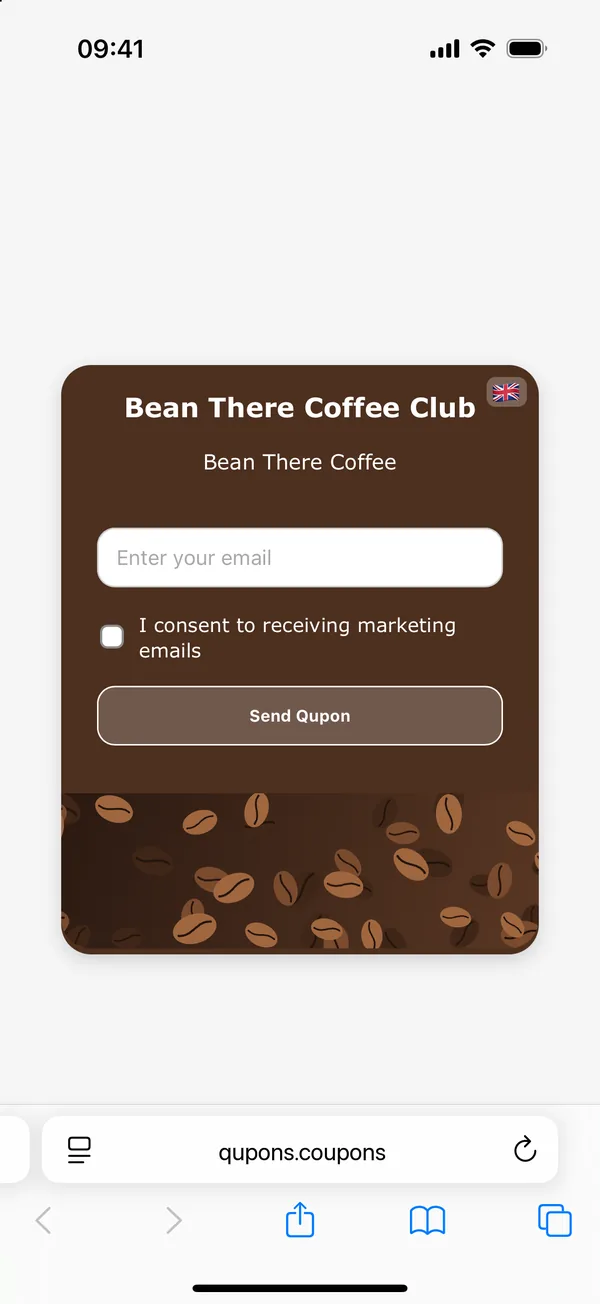
Open the sign-up link
Scan the QR code on the counter, or tap the link the business shared with you. A page opens in your browser, in the business's own colours, showing the name of the card and the business. It's in your phone's language, and you can pick another at the top of the page.
Prefer not to? Just tell the staff your email address at the till and they can send the card for you.
Enter your email address
Type your email address and tap Send Qupon. Tick the box if you'd like the business to email you about offers. That's entirely up to you, and it doesn't change your card.
If you already have a card from this business, you'll be sent the same card again rather than a new one, so your stamps are never split across two cards.
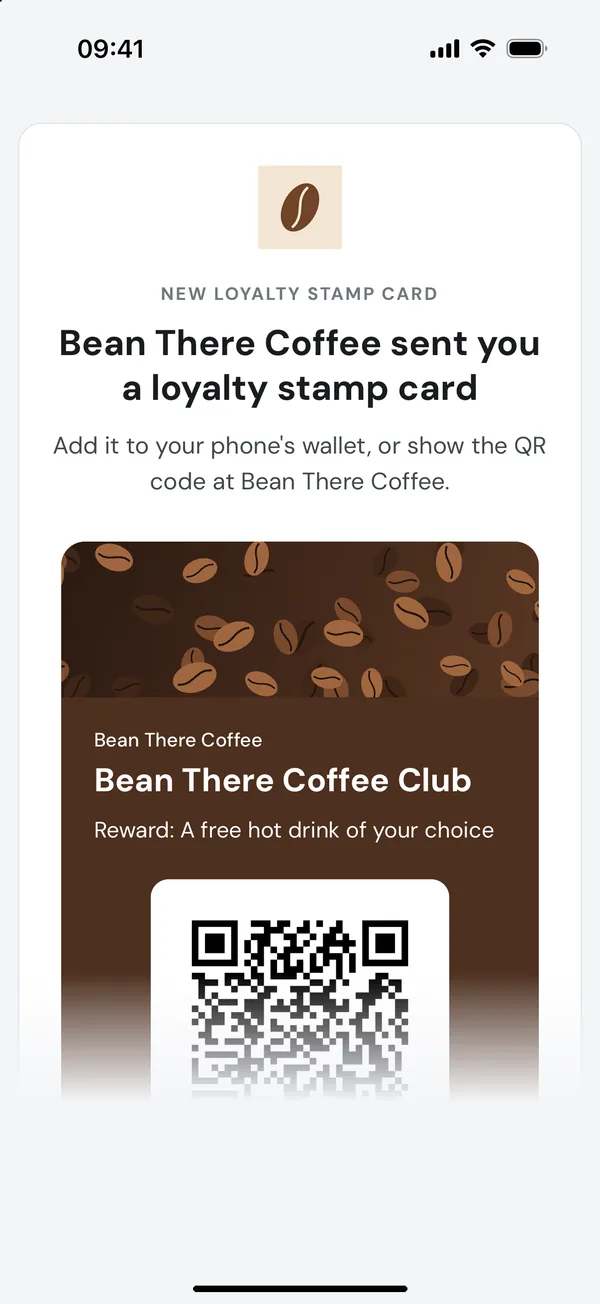
Open the email
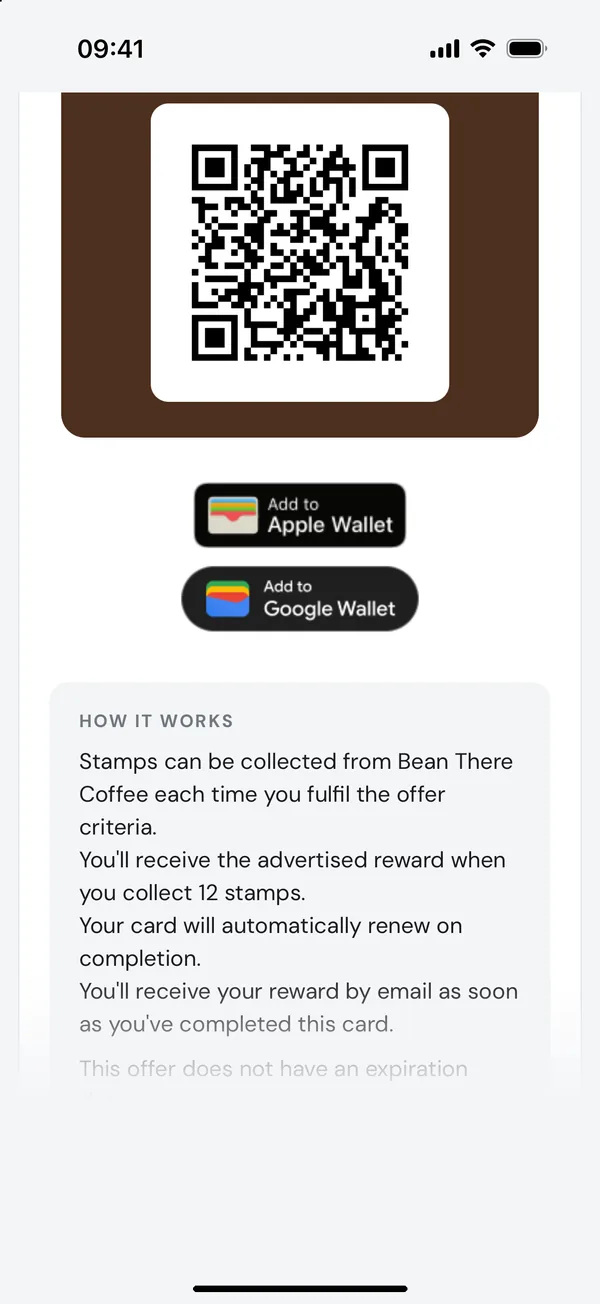
Within a minute you'll get an email from the business, titled "Your loyalty stamp card from…". It shows your card, its QR code and buttons to add it to your wallet.
Can't see it? Check your spam or promotions folder, or ask the business to resend it.
Add it to your wallet
Tap Add to Apple Wallet on an iPhone, or Add to Google Wallet on Android. The card is saved to your phone and works even without a signal.
Rather not use a wallet? That's fine: you can show the QR code in the email instead. The email also explains how the card works.
Use your card
- When you pay, open the card in your wallet (on an iPhone, double-click the side button, then swipe to it).
- Show the QR code to the staff. They'll scan it with the Qupons app.
- Your stamp is added straight away, and the count on your wallet card updates by itself a few moments later.
Earning your reward
When your card is full you've earned the reward the business offers. It arrives by email straight away, as a coupon with its own QR code and wallet pass, ready to use on your next visit. Show it at the till like your card.
- Most rewards never expire. If yours does, the date is shown on it in your wallet, and you'll get a reminder email before it runs out.
- Many businesses also start you on a new card automatically, so you can keep collecting.
Common questions
I've got a new phone. Have I lost my stamps?
No. Your stamps are stored by the business, not on your phone. Open the original email on your new phone and add the card to your wallet again, or ask the business to resend it.
The count on my wallet card hasn't changed
Wallet cards usually update within a minute, but can take longer if your phone has no signal. The business's app always has the correct count.
The business said my card "isn't redeemable"
That means the card is used up, has expired, or the business has paused or cancelled it. Ask them about it: they can see exactly why and can send you a new one. If a business cancels your card, you'll usually get an email to say so.
What language are the emails in?
Your card, emails and wallet pass are in English, French, German, Italian or Spanish, to match the language you signed up in.
How do I stop marketing emails or delete my details?
Contact the business that gave you the card. They can delete your details from their customer list, which also cancels your cards, and you'll get one email to confirm it's done. You can also email us at support@qupons.coupons, and our privacy policy explains your rights.